


Schedules

Zoho Payroll lets you create and run predefined tasks at specified time intervals using schedules. You can create your tasks using a Deluge script and schedule them to be executed at a particular time or on a recurring basis.
Scenario 1: Asha runs payroll for Zylker Inc. At the end of every month, she wants to automatically send a summary of pending pay runs to the finance team. She creates a schedule that runs on the last day of each month, fetches the pending pay run details, and emails the report to the finance team.
Scenario 2: Ravi uses a third-party application for maintaining an internal employee database. He would like to sync all employee data from Zoho Payroll to the external application periodically. He creates a custom schedule to sync the data at 6 PM every day.
Create a New Schedule
To create a custom schedule:
- Click Settings in the left sidebar.
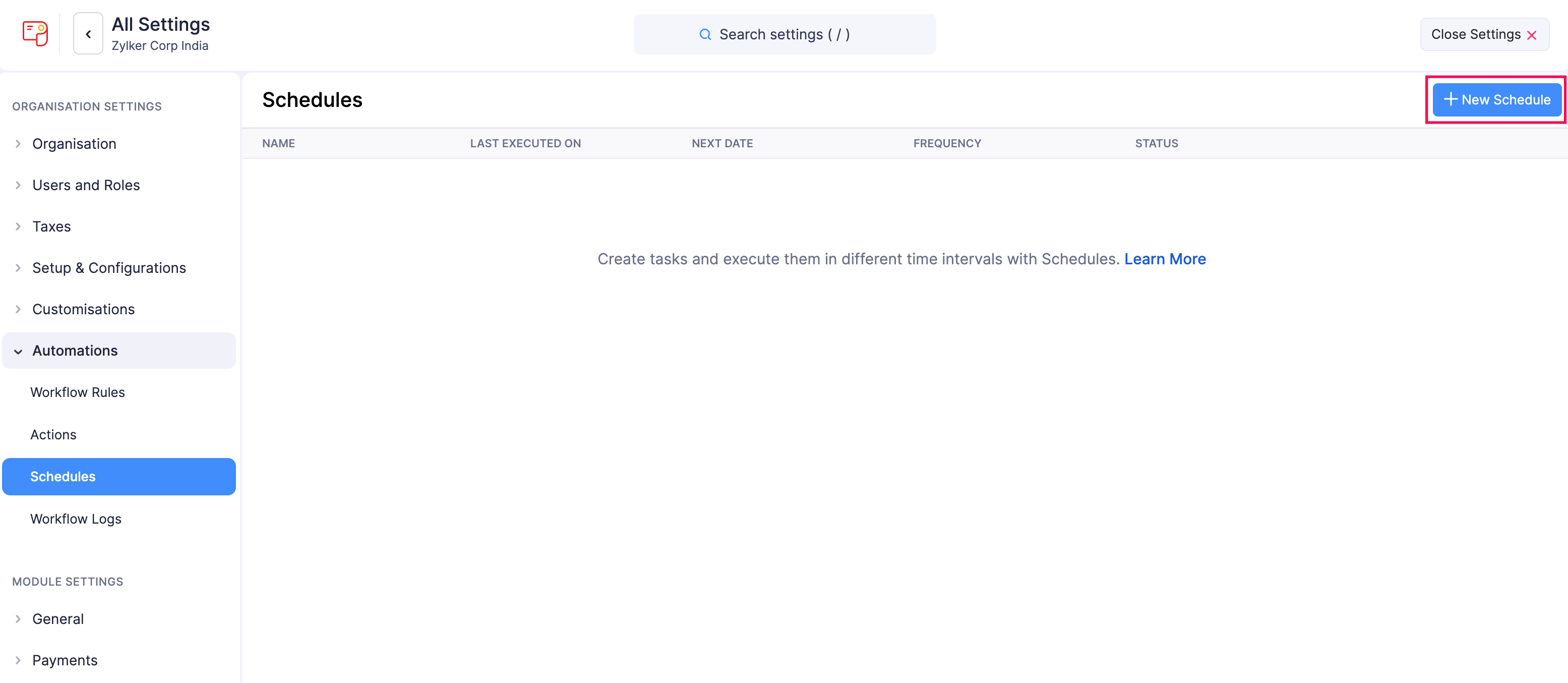
- Click Schedules under Automations.
- Click + New Schedule in the top right corner.
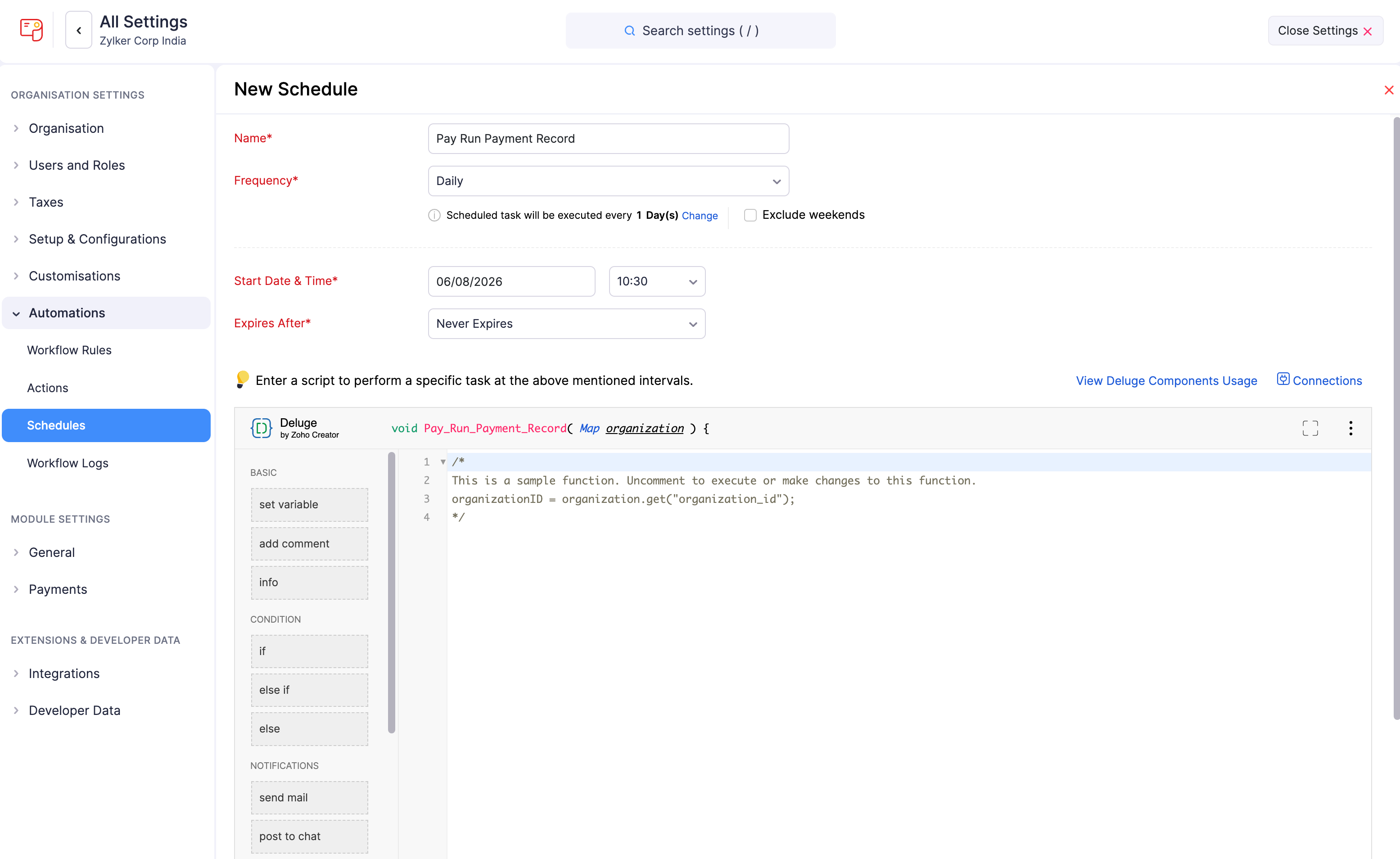
On the New Schedule page:
- Enter a Name for your schedule.
- Set the Frequency for the schedule to be executed. The available options are:
- Daily: The task will be executed every day (or based on your recurrence pattern). You can choose to Exclude weekends.
- Weekly: The task will be executed once a week. Select the day of the week on which the task should be executed.
- Monthly: The task will be executed once a month. This can be a specific date or a day in a month. For example, you can choose to execute it on the 5th of every month or the second Saturday of every month.
- Yearly: The task will be executed once a year. You can select the month and specify the date of execution or specify the day. For example, the task can be executed on the first Sunday in January or on January 5.
- Set the Start Date & Time for the schedule.
Warning: The start date of a schedule cannot be more than one year from the creation date.
- Select when the schedule should expire under Expires After. It can expire after a number of executions, on a set date, or never expire.
- In the Deluge editor, write the script that the schedule will run. Drag and drop building blocks or type in the code directly. The editor provides options for variables, conditions, notifications, and integrations.
- Click Save to save the schedule, or click Save and Execute to save and run it immediately.
Note:
- You can create a maximum of 10 custom schedules.
- Click View Deluge Components Usage in the editor to check daily usage limits for Deluge components.
- Click Connections to manage connections used by your schedule’s script.
View Logs
You can view logs of the schedules that were triggered in your organisation. To view logs:
- Click Settings in the left sidebar.
- Click Schedules under Automations.
- Hover over the schedule whose logs you want to view, click the dropdown to the right, and select View Logs.
The list of all the schedule executions, the time of execution, and their log IDs will be displayed.
Note: Zoho Payroll displays only the logs of the last three months.
Edit a Schedule
You can update the details of a schedule by editing it. To edit:
- Click Settings in the left sidebar.
- Click Schedules under Automations.
- Hover over the schedule you want to edit, click the dropdown to the right, and select Edit.
- Make the necessary changes and click Save.
Mark a Schedule as Inactive
If you want to disable a schedule temporarily, you can mark it as inactive. To mark a schedule as inactive:
- Click Settings in the left sidebar.
- Click Schedules under Automations.
- Hover over the schedule you want to mark as inactive, click the dropdown to the right, and select Mark as Inactive.
Mark a Schedule as Active
If you need a schedule that was previously marked as inactive, you can enable it again. To mark a schedule as active:
- Click Settings in the left sidebar.
- Click Schedules under Automations.
- Hover over the inactive schedule, click the dropdown to the right, and select Mark as Active.
Delete a Schedule
If you no longer require certain schedules, you can delete them. To delete:
- Click Settings in the left sidebar.
- Click Schedules under Automations.
- Hover over the schedule you want to delete, click the dropdown to the right, and select Delete.
- In the popup, click Yes to confirm your action.