


Workflow Rules

You can automate tasks such as sending emails, triggering in-app notifications, updating fields, and triggering webhooks or functions by creating workflow rules in Zoho Payroll. A workflow rule executes automatically once the conditions you define are met.
Scenario: Ravi, the payroll manager at Zylker Inc, wants to automatically notify the finance team every time a new pay run is created. He sets up a workflow rule in Zoho Payroll so that whenever a pay run is created, an email alert is triggered and sent to the finance team automatically, saving time and ensuring no pay run goes unnoticed.
Create a New Workflow Rule
To create a new workflow rule:
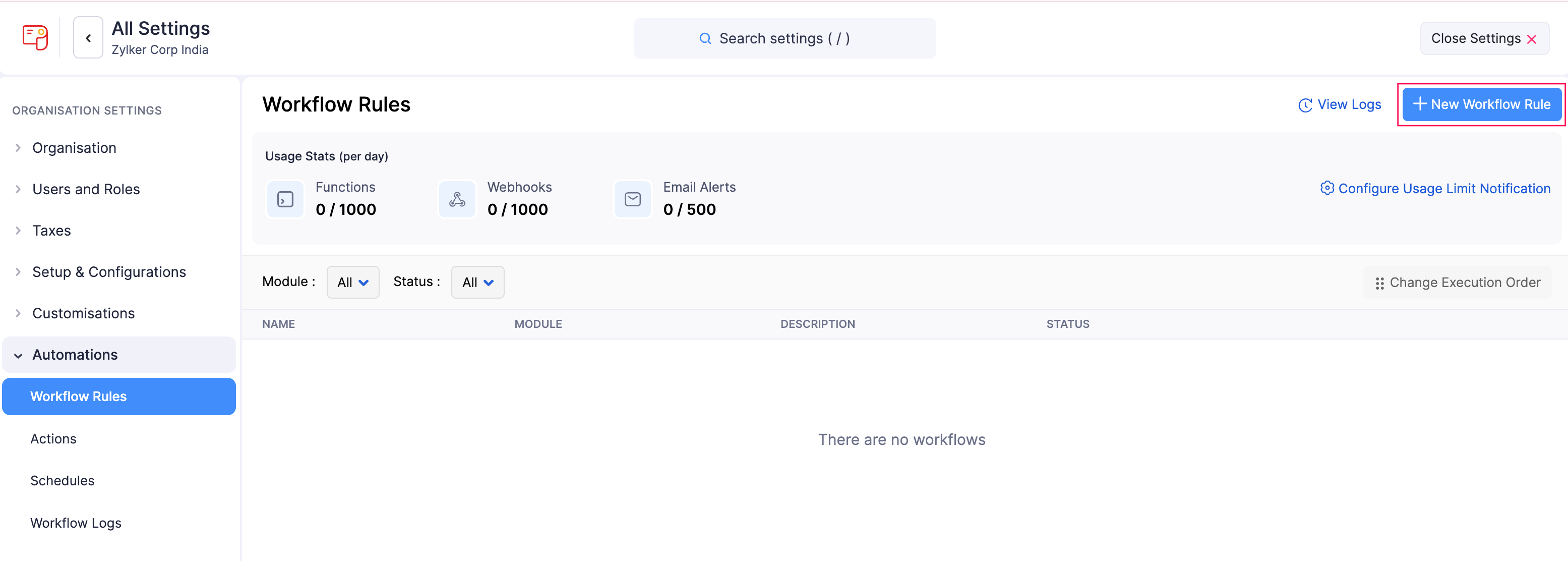
- Click Settings in the left sidebar.
- Click Workflow Rules under Automations.
- Click + New Workflow Rule in the top right corner.
Name Your Workflow
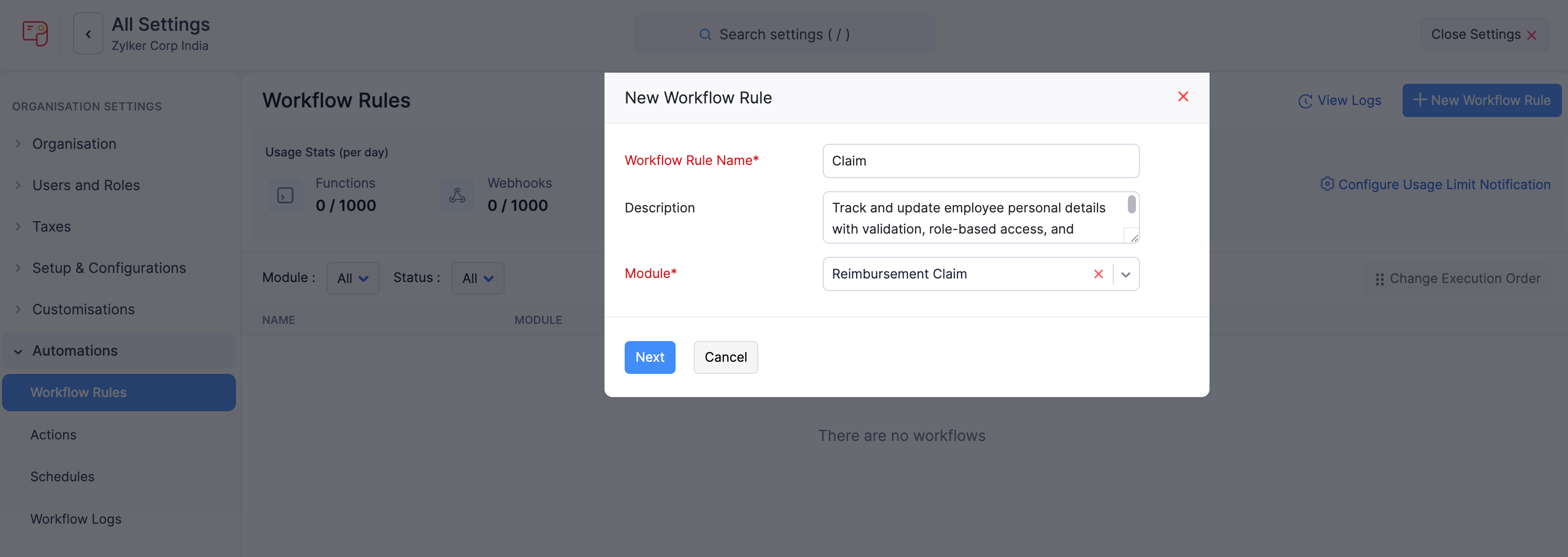
In the New Workflow Rule popup, fill in the following fields:
- Workflow Rule Name: Enter a name for the workflow rule.
- Description: Add a description if necessary.
- Module: Select the module for the workflow rule from the dropdown, such as Employees, Pay Runs, Loans, Reimbursement Claims, or Custom Modules.
- Click Next.
Choose When to Trigger
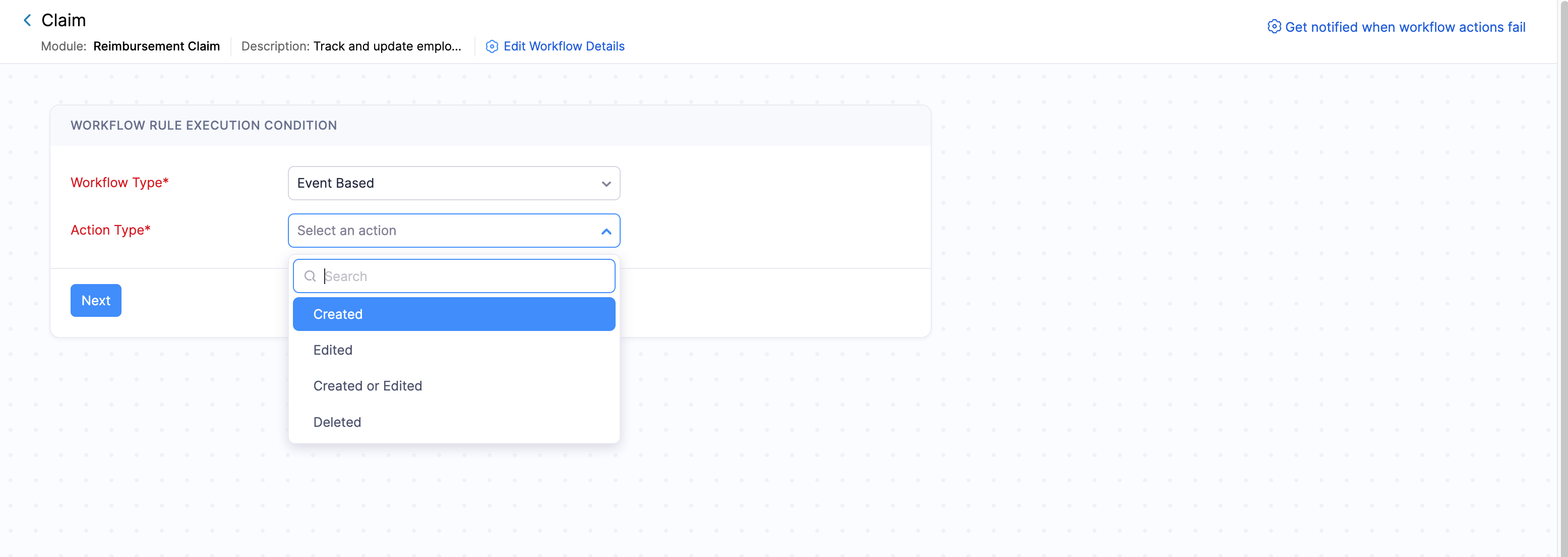
Under WORKFLOW RULE EXECUTION CONDITION, select the Workflow Type to specify how and when the workflow should be triggered:
Event Based
The workflow will be triggered immediately when a specific action occurs on a record. Select the Action Type that triggers the workflow rule:
- Created: The workflow will be triggered when a new record is created.
- Edited: The workflow will be triggered when an existing record is edited.
- Created or Edited: The workflow will be triggered when a record is created or edited.
- Deleted: The workflow will be triggered when a record is deleted.
If you choose an edited or created-or-edited action type, fill in the following fields:
Execute the workflow when: Choose the condition that determines when the workflow should be triggered based on actions taken on the fields:
- When any field is updated: The workflow will be executed when any field in the selected module is updated.
- When any selected field is updated: Select up to three fields. The workflow will be executed whenever any of the selected fields are updated.
- When all selected fields are updated: Select up to three fields. The workflow will be executed only when all the selected fields are updated.
- Any selected field is not updated: Select up to three fields. The workflow will be executed if any of the selected fields are not updated.
- All selected fields are not updated: Select up to three fields. The workflow will be executed only if none of the selected fields are updated.
Note: The Execute the workflow when and Execute when the record is fields will only appear when the action type involves editing.
Execute when the record is: Choose when the workflow should be triggered based on how often the record is edited:
- Edited for the first time: The workflow will be executed only the first time the record is edited after it is created.
- Edited each time: The workflow will be executed every time the record is edited.
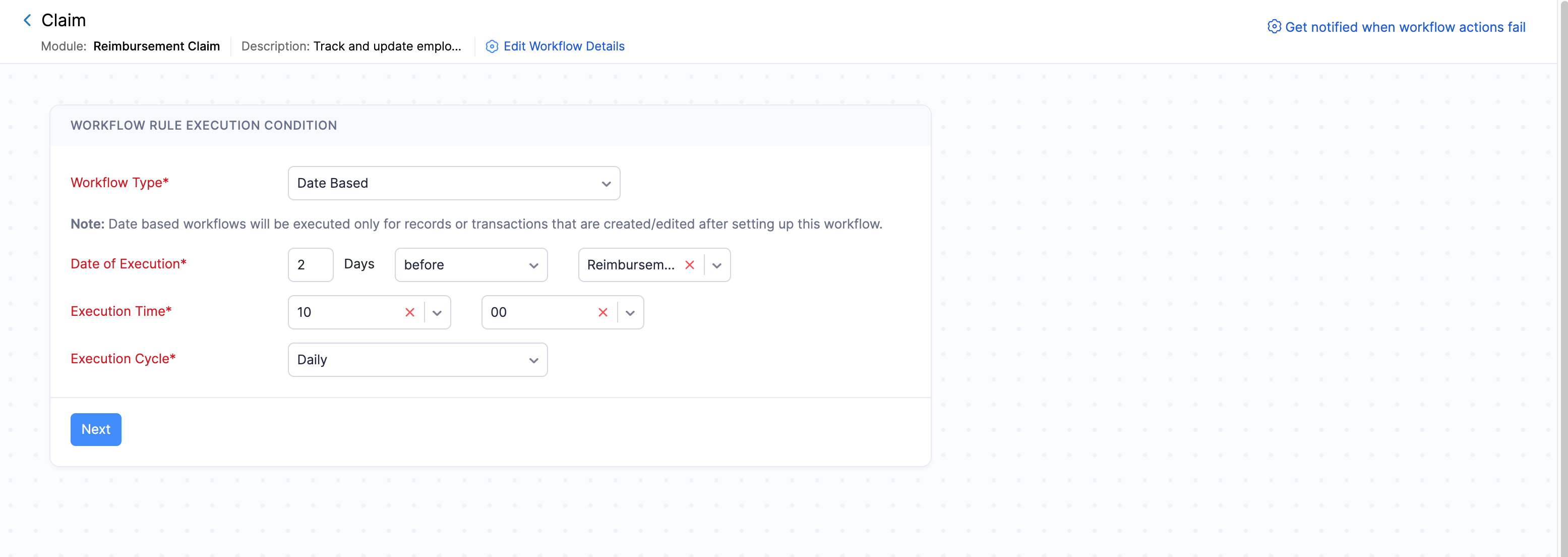
Date Based
The workflow rule will be triggered on a specific date or relative to a date field in a record.
Note: Date-based workflows will be executed only for records that are created or edited after setting up this workflow.
Fill in the following fields:
- Date of Execution: The date at which the workflow will be triggered. You can choose to trigger the workflow on any number of days before or after a date field in the record.
- Execution Time: Choose the exact time at which the workflow rule should be triggered.
- Execution Cycle: Choose the frequency at which the workflow should be triggered. The following options are supported: Once, Daily, Weekly, Monthly, Yearly.
- Click Next after entering the required details.
Add Criteria
You can use criteria to ensure the workflow runs only when specific conditions are met. To add criteria:
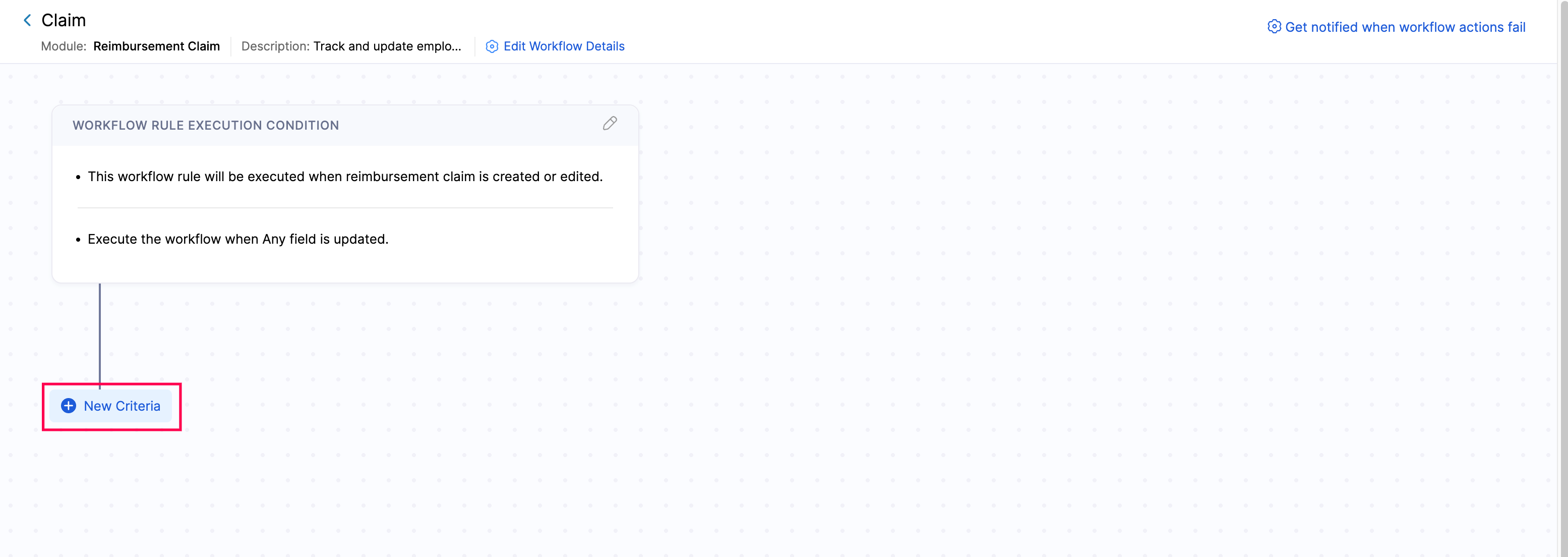
- Click + New Criteria to create a new criteria for the workflow rule.
- In the panel that appear, click Yes to add criteria or No to skip.
- Select a field, the comparator, and enter the necessary value.
- Click + Add Criterion or + to create additional criteria if necessary.
- If you add multiple criteria, select either AND or OR from the dropdown based on how you want the criteria to work. You can also edit the criteria pattern manually in the CRITERIA PATTERN field.
- Toggle Use formula if you want to define criteria using a formula instead.
- Once you have added the necessary criteria, click Done.
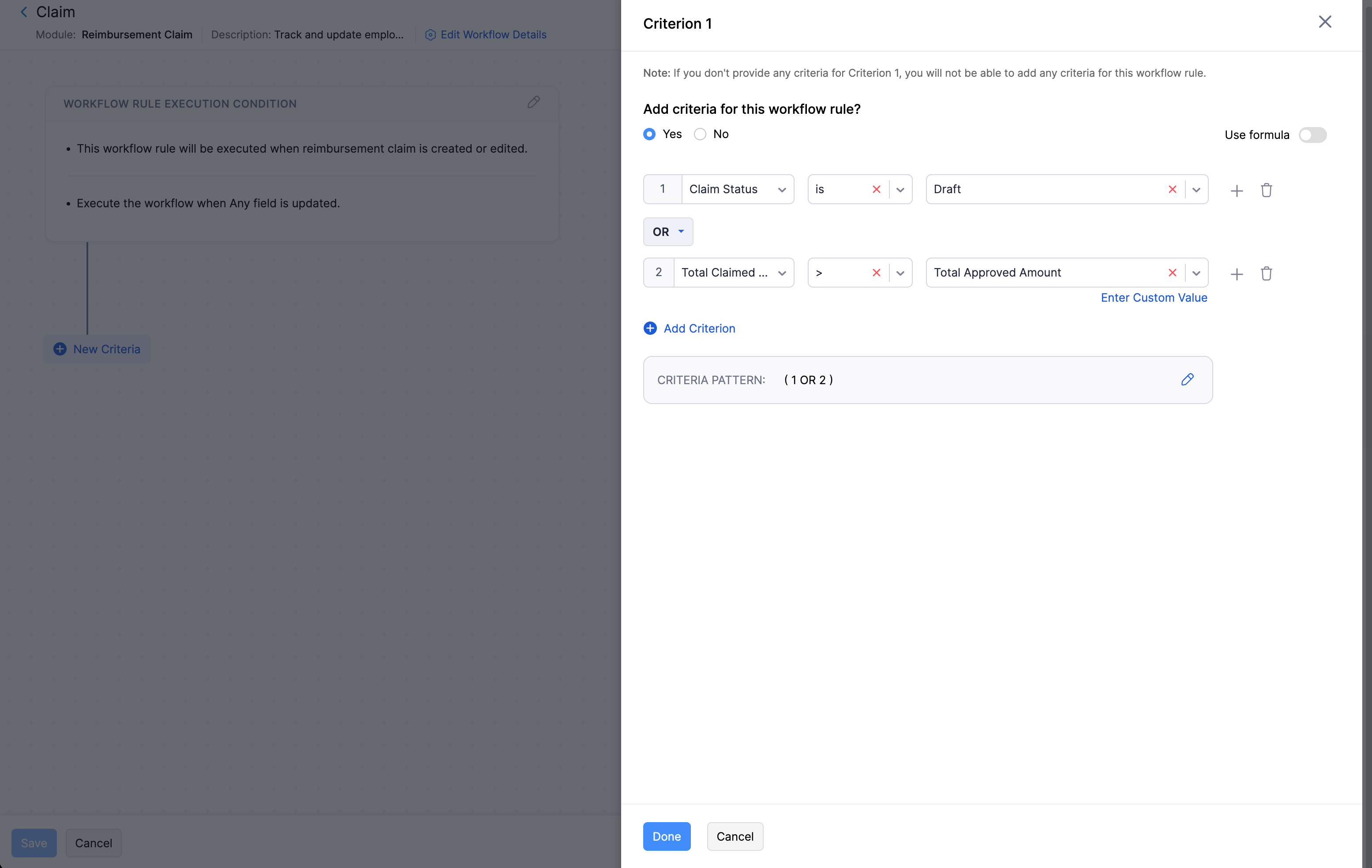
Note: You can create up to 10 criteria for one workflow, and within each criterion, you can add up to 10 conditions.
Add Actions
Once you set up the triggers, associate actions with the workflow. You can choose to trigger the actions immediately when the conditions are satisfied or at a particular time:
Immediate Actions
Triggers actions immediately when the criteria are met.
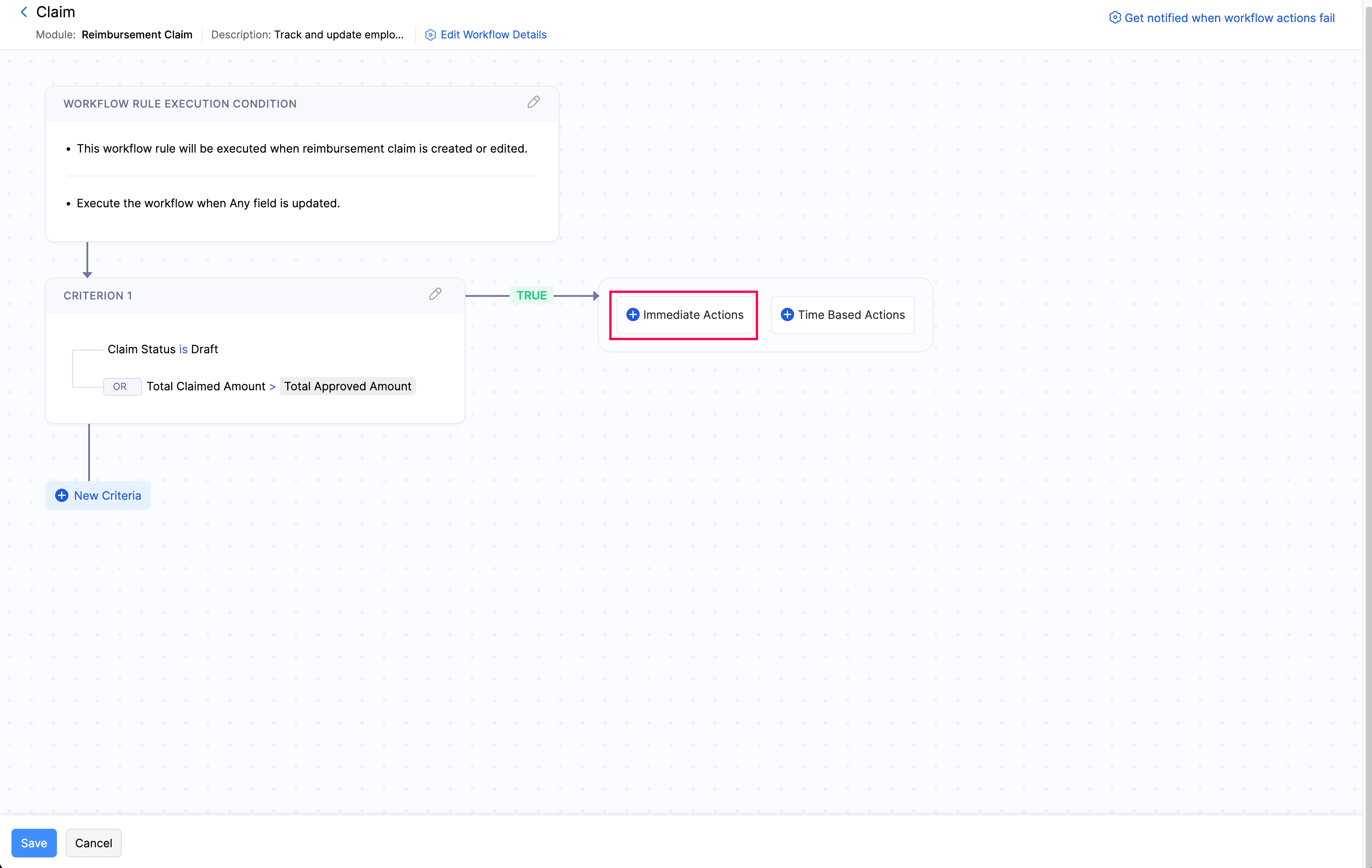
- Click Immediate Actions on the criteria row.
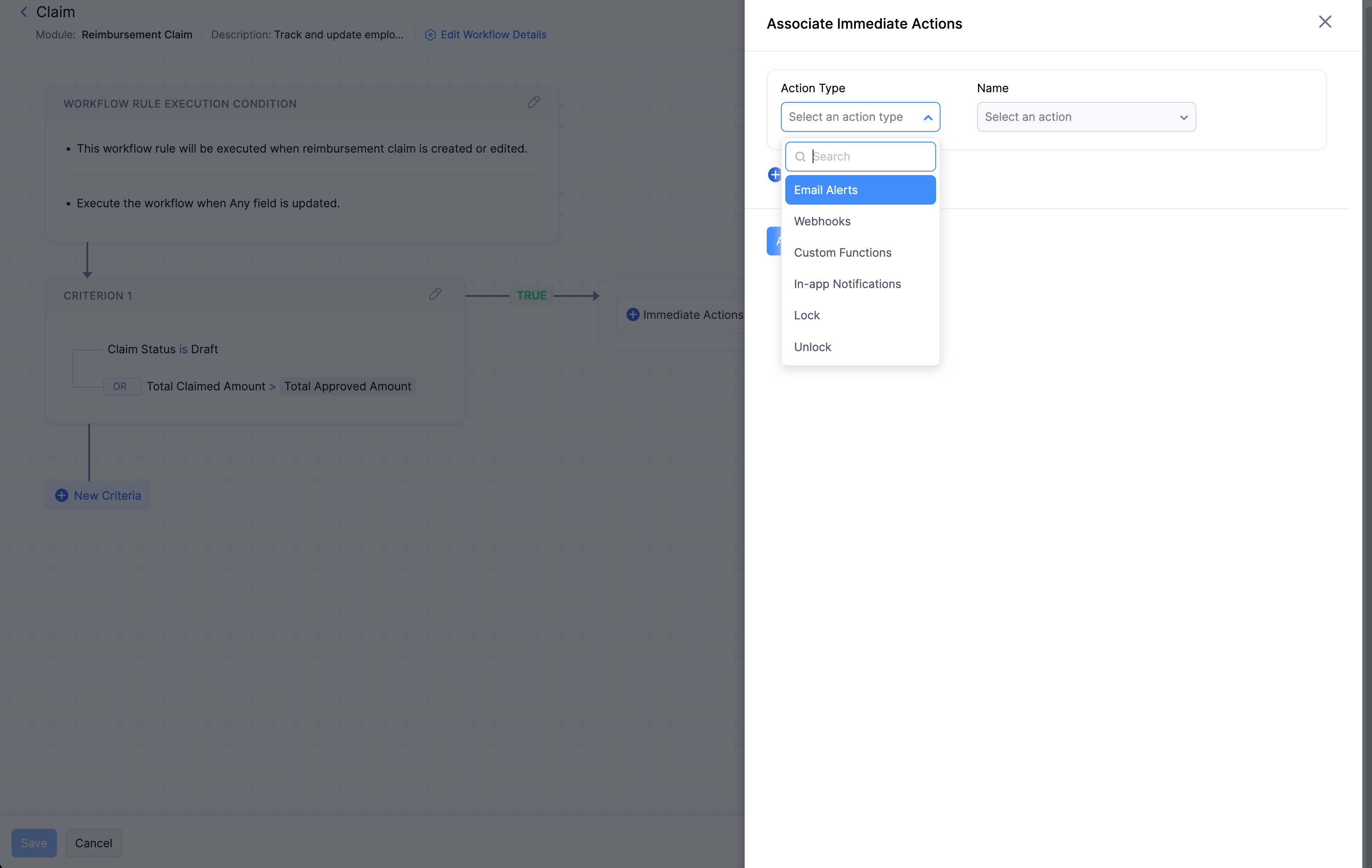
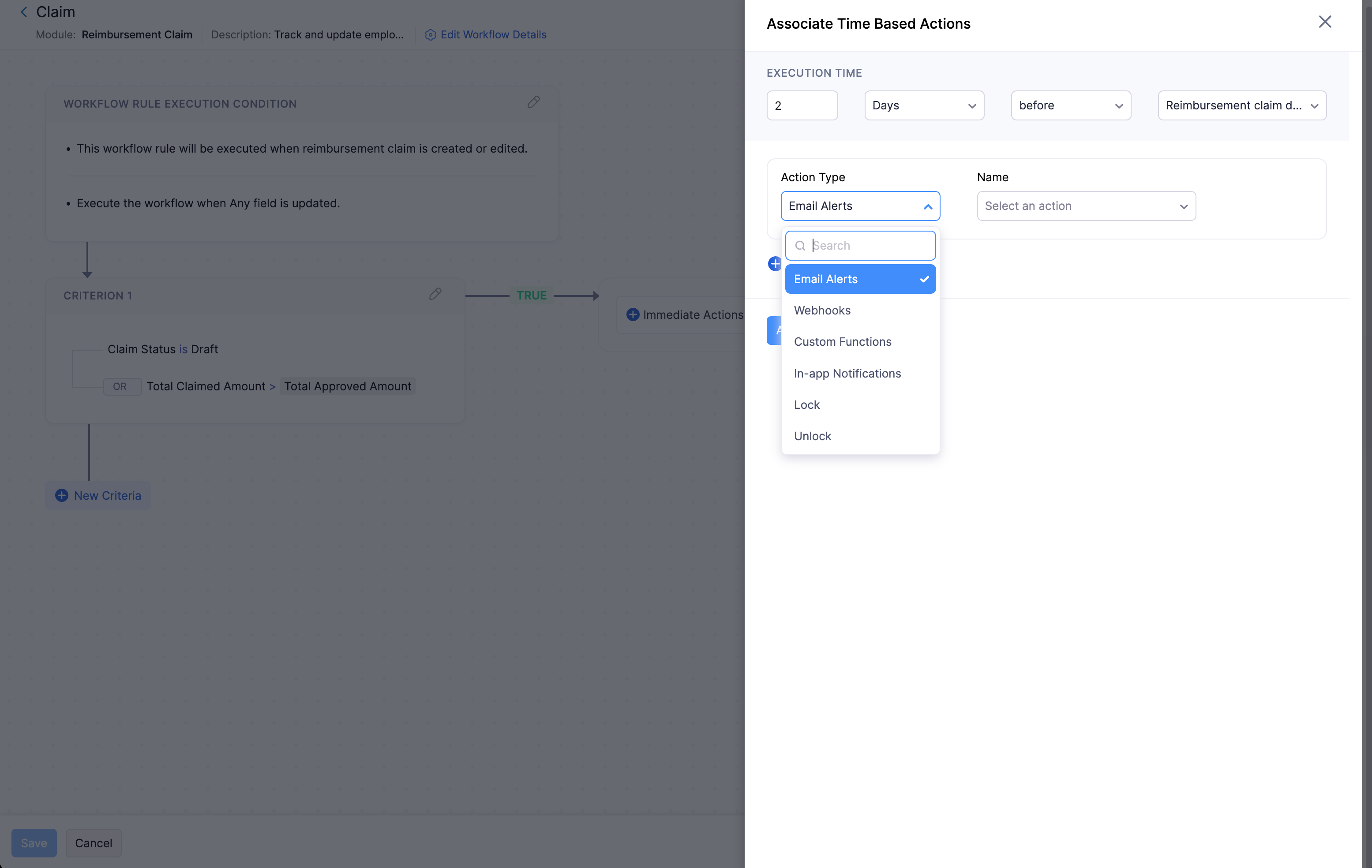
- In the Associate Immediate Actions sidebar, select the type of workflow action from the Action Type dropdown. The available action types are:
- Email Alerts: Send automated email notifications.
- Webhooks: Send data to an external URL.
- Functions: Execute a Deluge script.
- In-App Notifications: Notify users within the application.
- Lock: Lock the record to prevent further edits.
- Unlock: Unlock a previously locked record.
- From the Name dropdown, choose an existing action, or click + Add New [Action Type] to create a new one.
- Click + Add New Action to add more actions if necessary.
- Click Associate to finish associating actions with the criteria.
Time Based Actions
Triggers actions based on the scheduled time.
- Click Time Based Actions on the criteria row.
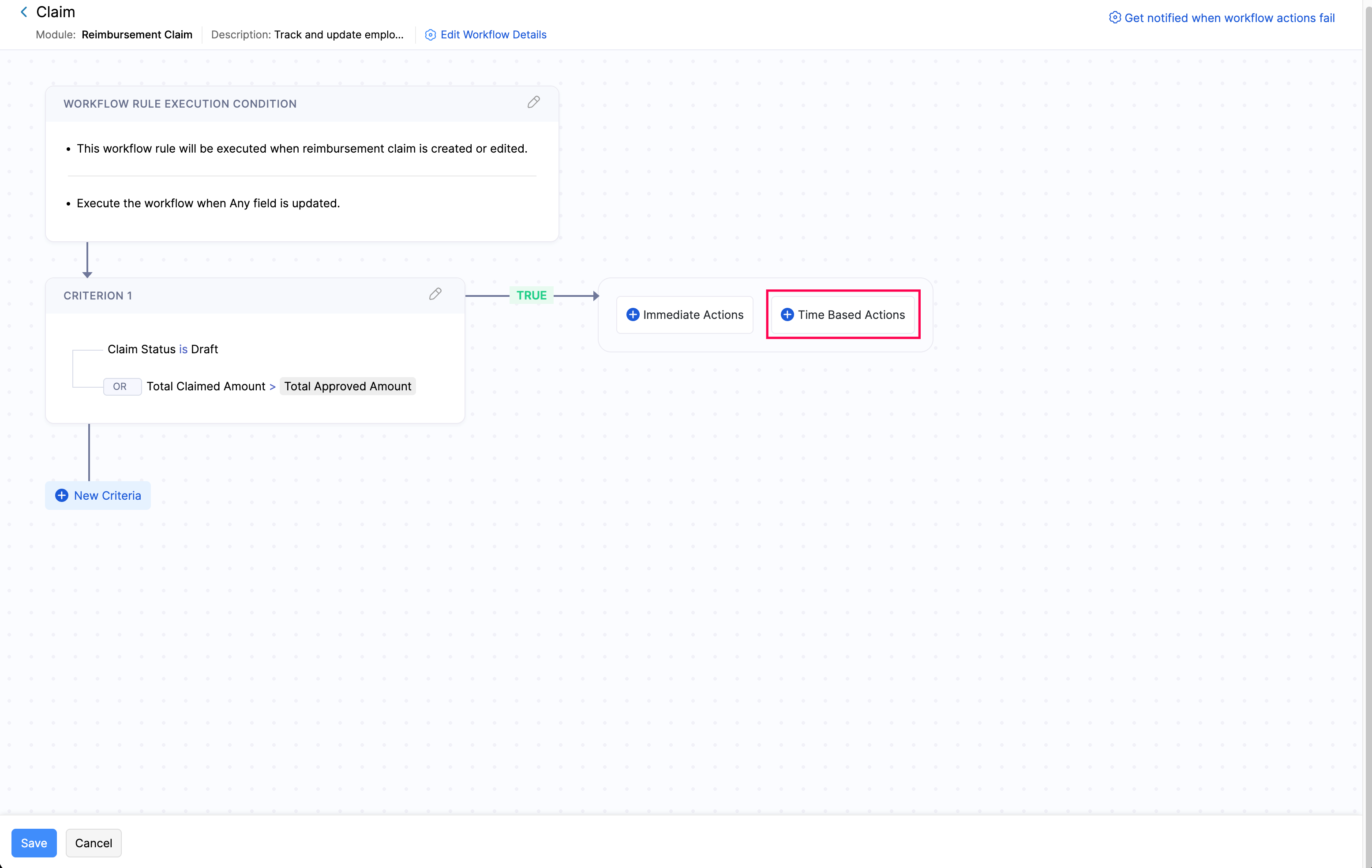
- In the sidebar, set the EXECUTION TIME for when the action will be executed.
- Select the type of workflow action from the Action Type dropdown, then choose the action from the Name dropdown.
- Click + Add New Action to add more actions if necessary.
- Click Associate to finish associating actions with the criteria.
After configuring your actions, click Save to finalise and save the workflow rule, or click Save as Draft to save it without activating.
Once the workflow rule is saved, whenever an action occurs that matches the trigger you configured, the rule will execute and the specified actions will take place.
Change the Execution Order of Workflow Rules
If you have multiple workflow rules for the same module, you can reorder them to control the sequence in which they are executed. To reorder:
- Click Settings in the left sidebar.
- Click Workflow Rules under Automations.
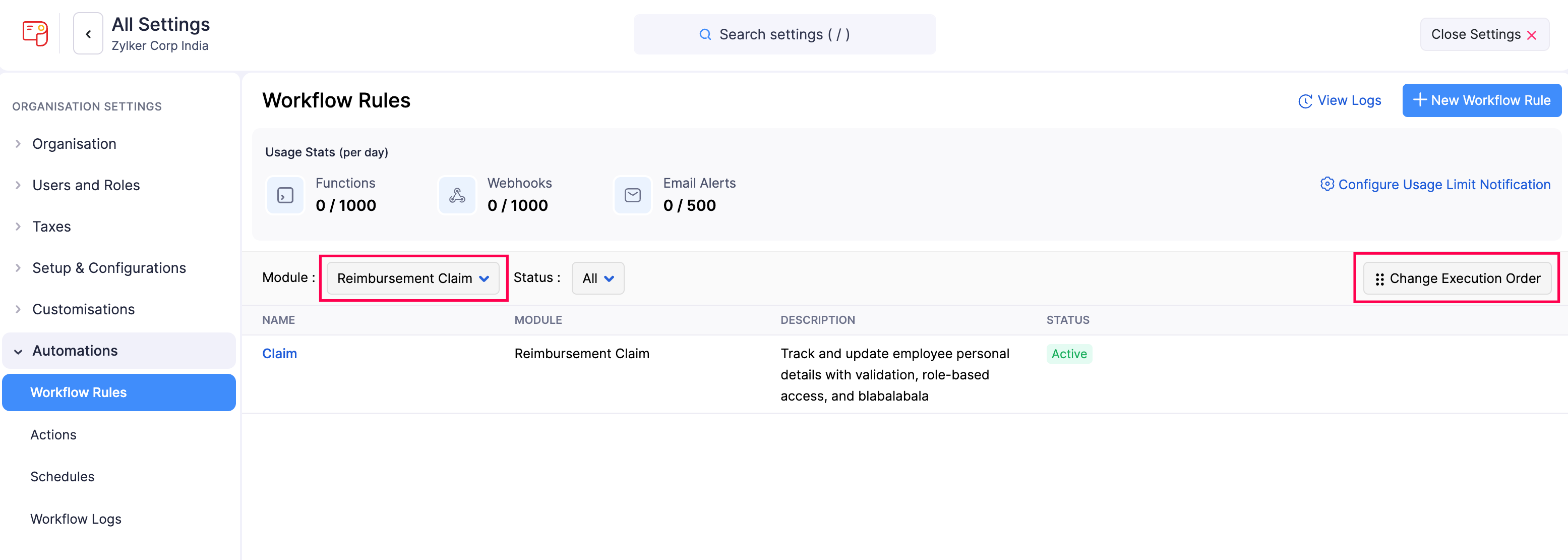
- Select the module where you want to change the order by clicking the Module dropdown.
- Click Change Execution Order in the top right corner.
- Pick and reorder the rules based on your preference.
- Click Save Reorder.
Edit a Workflow Rule
- Click Settings in the left sidebar.
- Click Workflow Rules under Automations.
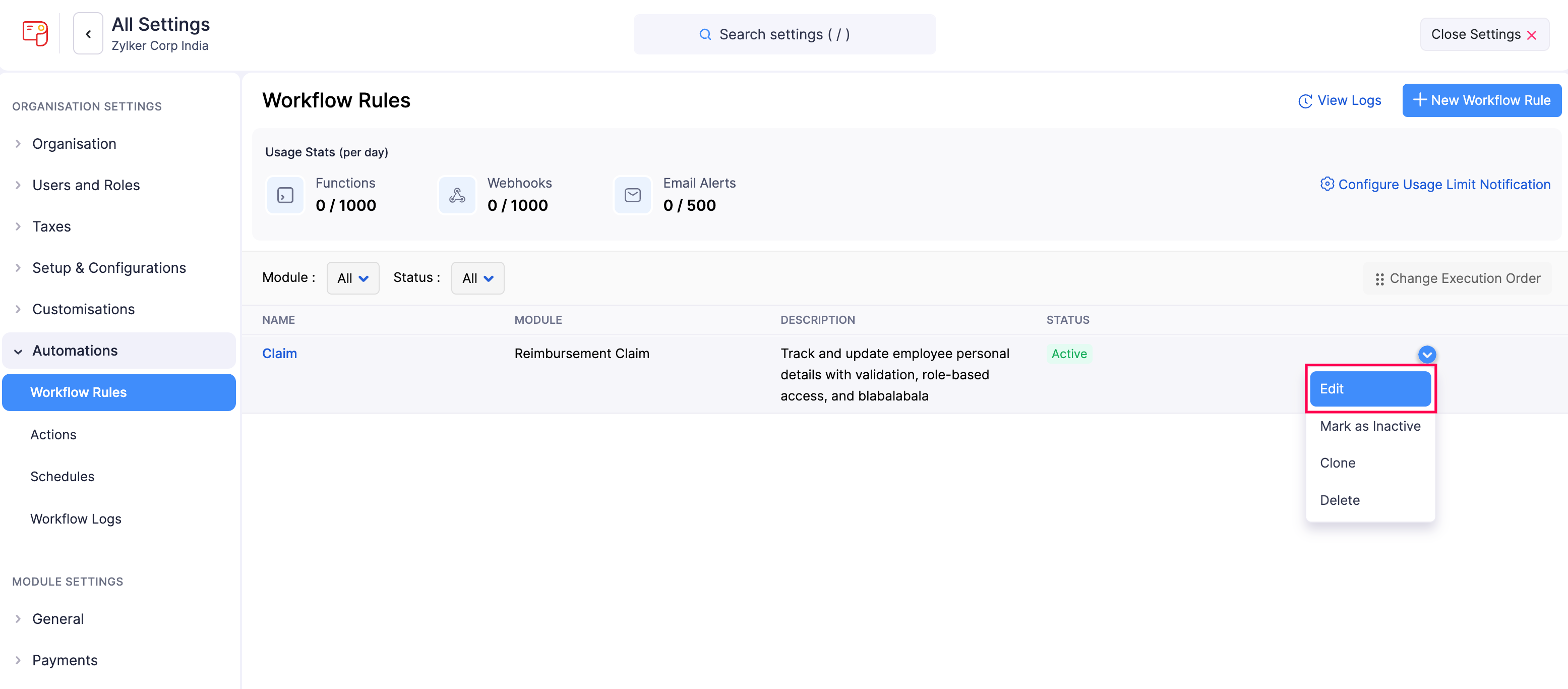
- Hover over the workflow rule you want to edit and click Edit.
- Make your changes and click Save.
Mark a Workflow Rule as Inactive
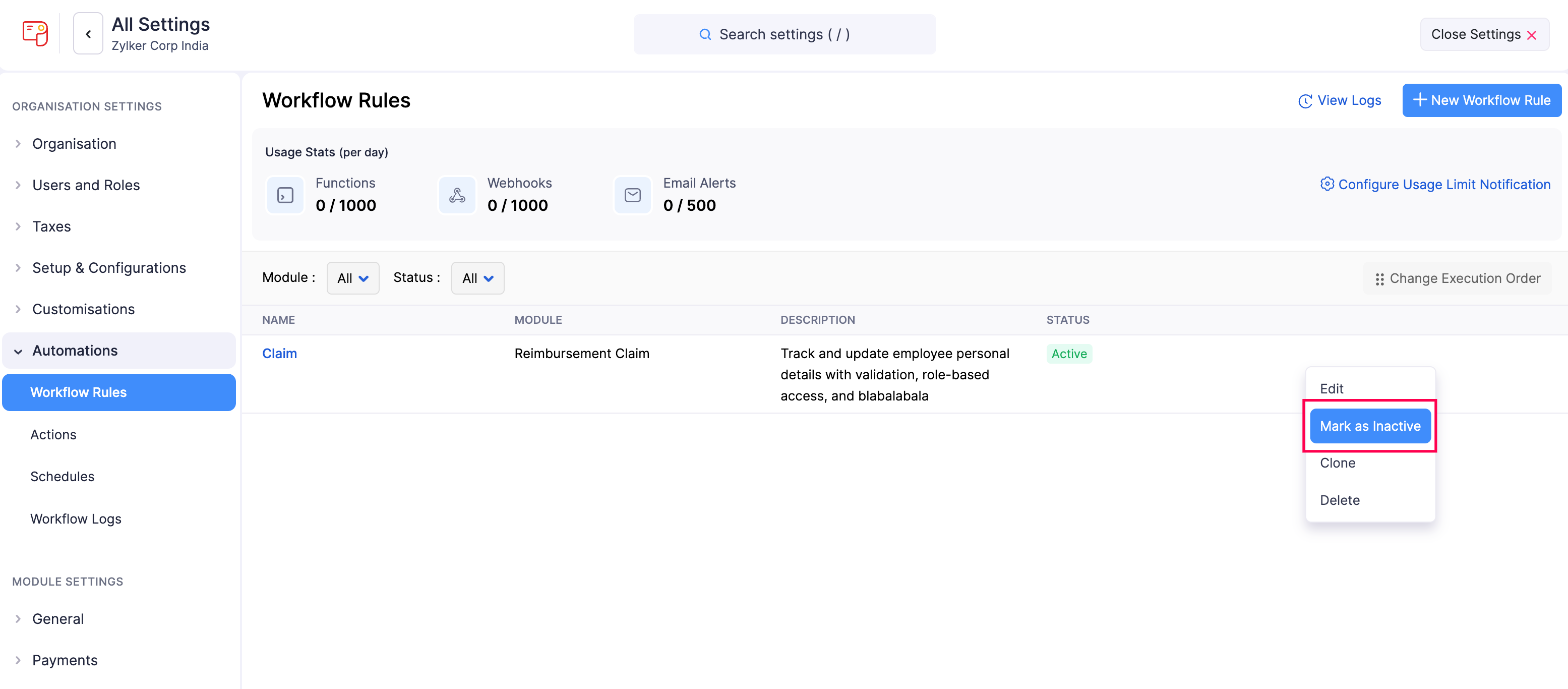
If you will not be using a workflow rule for a while but want to keep it for future use, you can mark it as inactive instead of deleting it. To mark a workflow rule as inactive:
- Click Settings in the left sidebar.
- Click Workflow Rules under Automations.
- Hover over the workflow rule you want to mark as inactive, click the dropdown to the right, and select Mark as Inactive.
Mark a Workflow Rule as Active
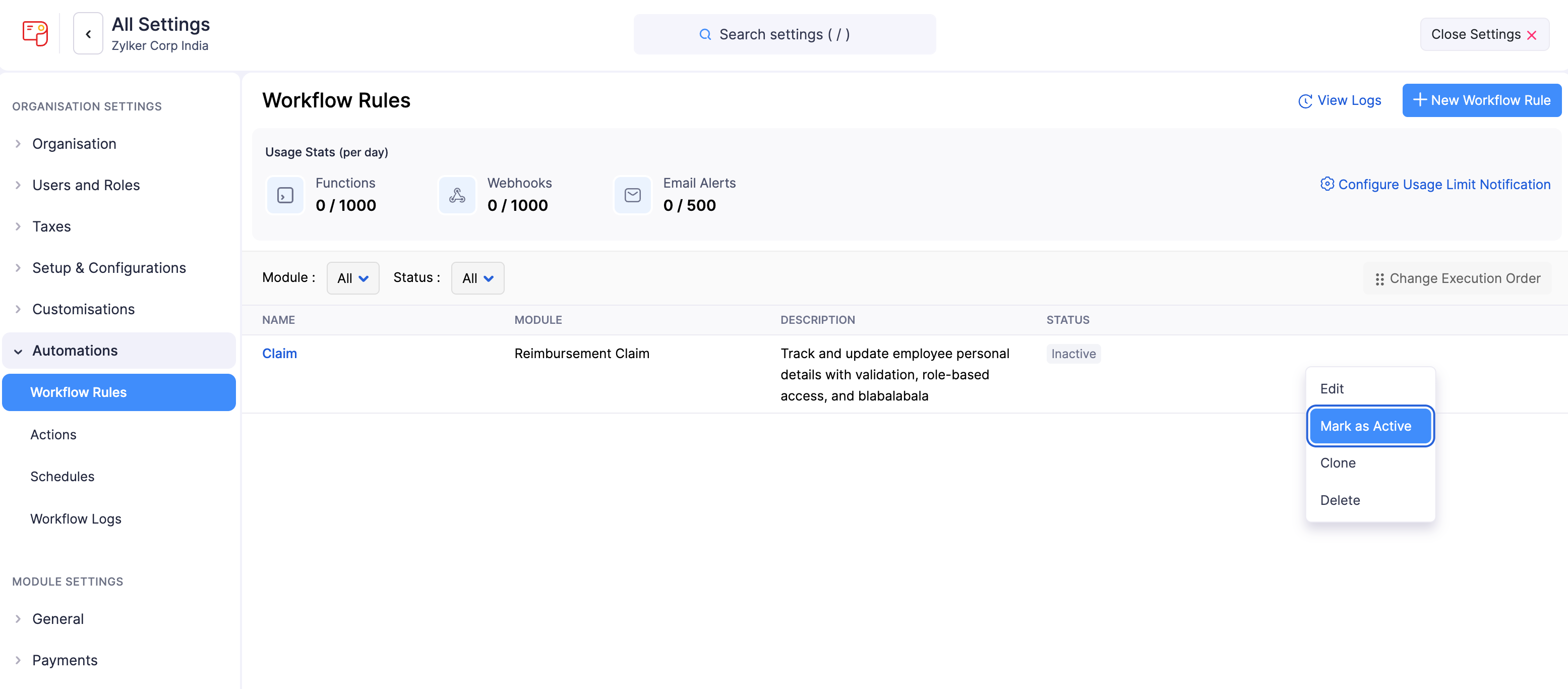
If you need a workflow rule that was previously marked as inactive, you can enable it again. To mark a workflow rule as active:
- Click Settings in the left sidebar.
- Click Workflow Rules under Automations.
- Hover over the inactive workflow rule, click the dropdown to the right, and select Mark as Active.
Configure Usage Limit Notification
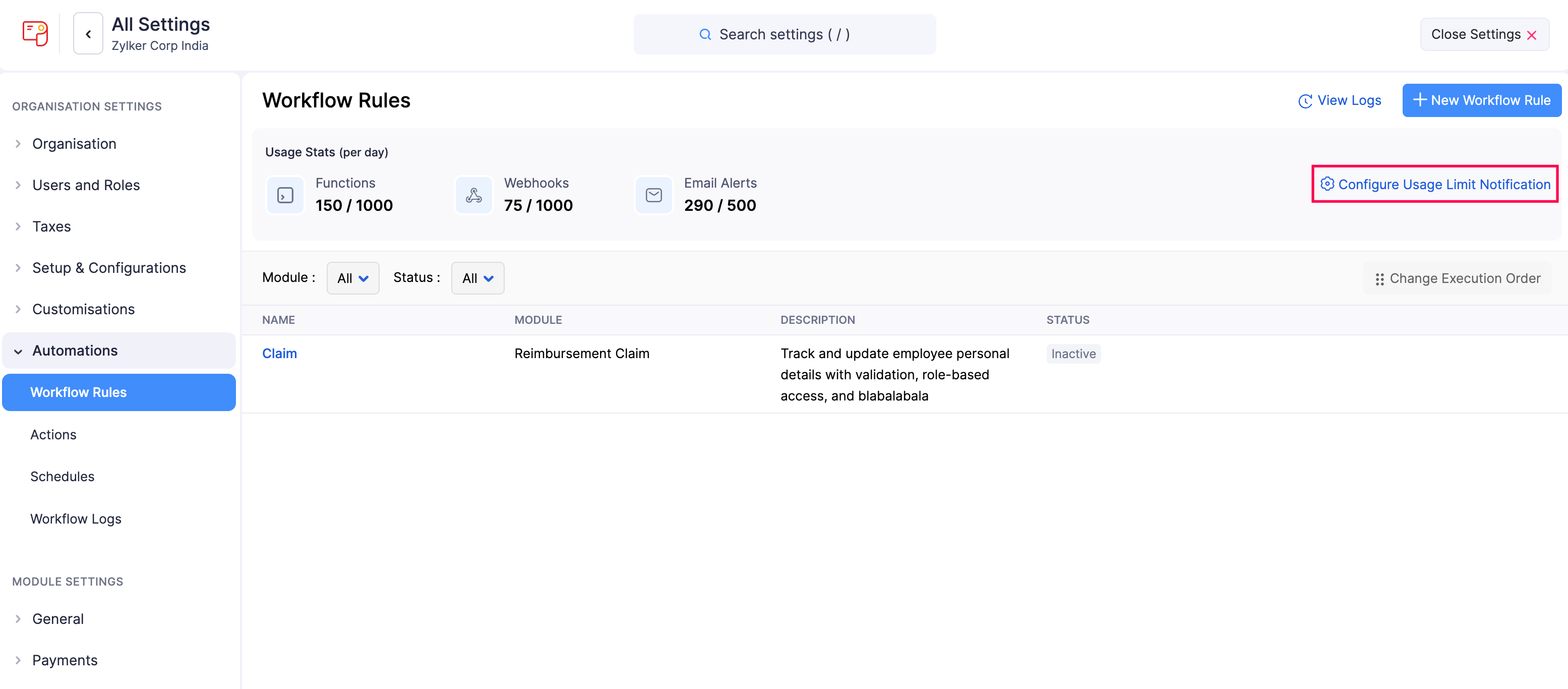
You can set threshold-based notifications to stay informed when your workflow actions approach their daily usage limits. When the number of triggered actions crosses the threshold you set, Zoho Payroll notifies the specified recipients.
To configure usage limit notifications:
- Click Settings in the left sidebar.
- Click Workflow Rules under Automations.
- Click Configure Usage Limit Notification in the top right corner.
- In the Configure Usage Limit Notification popup, set the threshold percentage for each action type:
- Email Alerts
- Webhooks
- Functions
- Select the Email Recipients who should be notified.
- Click Save.
Note: Admins will also receive in-app notifications when any workflow action crosses the specified threshold.
View Workflow Actions Usage Stats
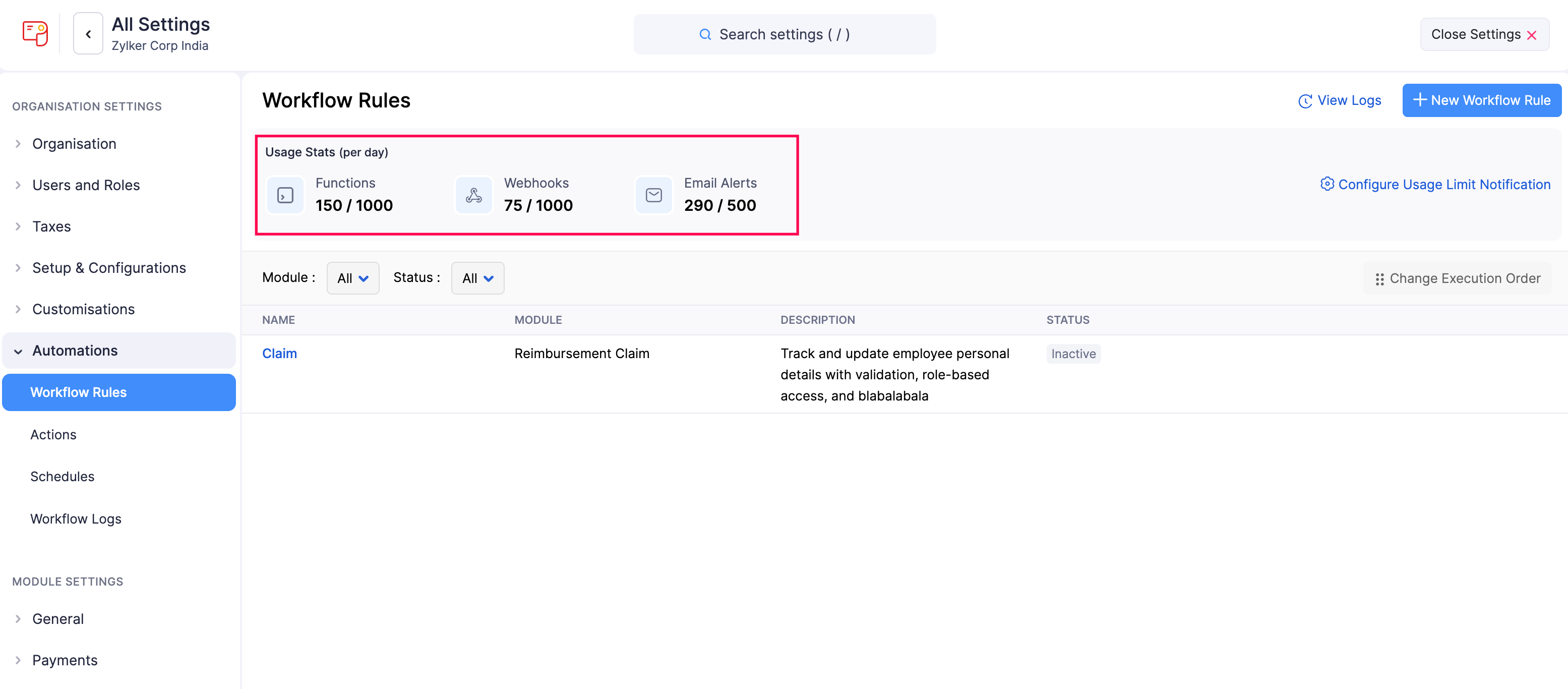
Zoho Payroll provides a usage stats section where you can view the total workflow actions available and the number of actions triggered for the day.
To view the workflow actions usage stats:
- Click Settings in the left sidebar.
- Click Workflow Rules under Automations.
The total and triggered counts of functions, webhooks, and email alerts for the day will be displayed in the Usage Stats (per day) section at the top of the page.
Filter Workflow Rules
You can quickly find workflow rules by filtering them by module or status. To filter:
- Click Settings in the left sidebar.
- Click Workflow Rules under Automations.
- To filter by module, click the dropdown next to Module and select the required option.

- To filter by status, click the dropdown next to Status and select the required option.

Delete a Workflow Rule
- Click Settings in the left sidebar.
- Click Workflow Rules under Automations.
- Hover over the workflow rule you want to delete, click the dropdown to the right, and select Delete.
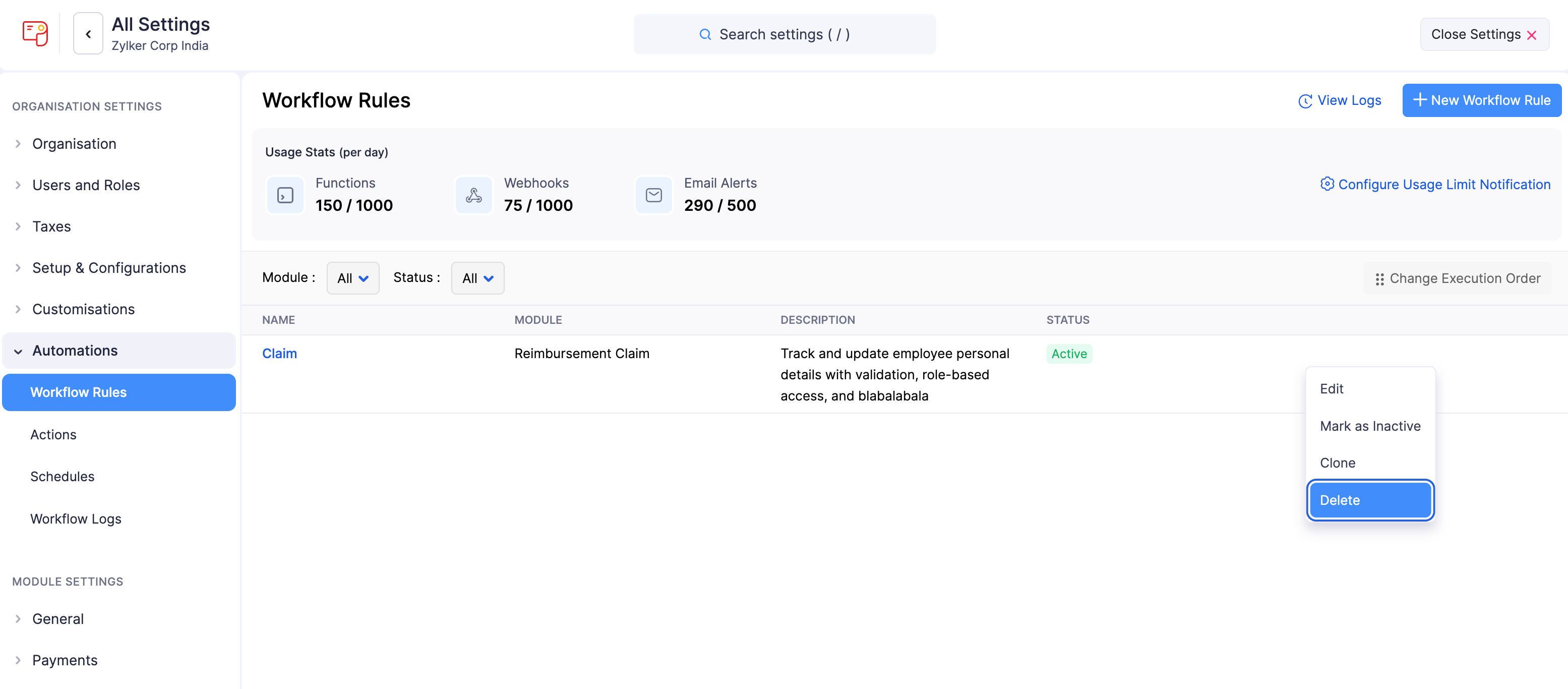
- In the popup that follows, click Yes to confirm.