


In-app Notifications

Zoho Payroll lets you create in-app notifications to alert users within the application when specific workflow events occur, such as when a record is created or updated. These notifications appear under the Notifications bell icon in the Zoho Payroll header. Users can click the bell icon at any time to view their notifications. You can set this up for all the modules and choose when to trigger the notification.
Scenario: At Zylker Technologies, Priya, the HR manager, wants all admins to be notified within the application whenever a pay run is created. She creates an in-app notification and associates it with a workflow rule so that every time a pay run is created, the admins see a notification in the app without needing to check their email.
Create an In-app Notification
To associate in-app notifications with workflow rules, you must first create them. To create an in-app notification:
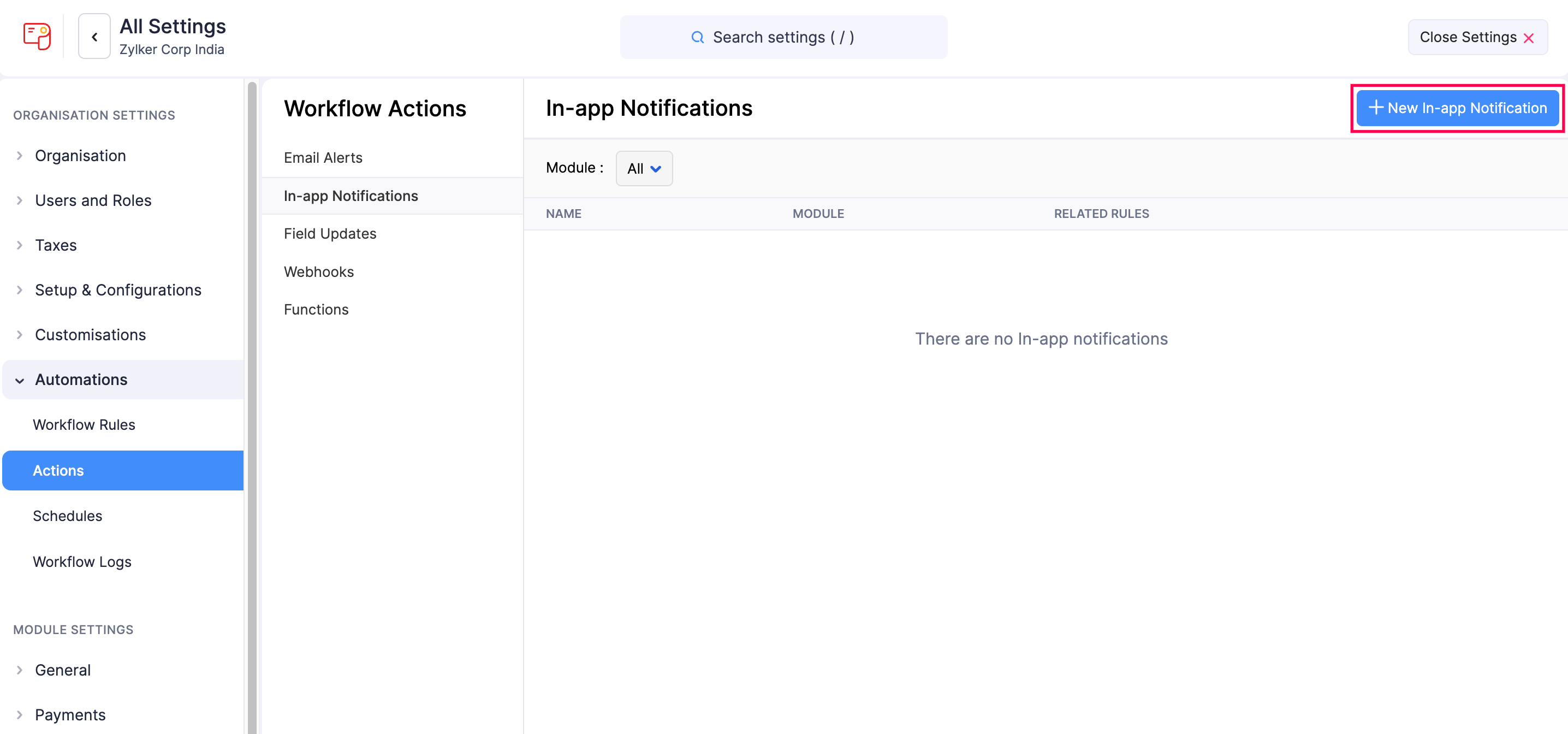
- Click Settings in the left sidebar.
- Select Actions under Automations.
- In the Workflow Actions pane, select In-app Notifications.
- Click + New In-app Notification in the top right corner.
- Fill in the following fields:
- Name: Enter a name for the notification.
- Module: Select the required module.
- Recipients: Select the users and roles who should receive the notification.
- Message: Enter the message to be displayed as the notification. Click Insert Placeholders to add dynamic values to the message.
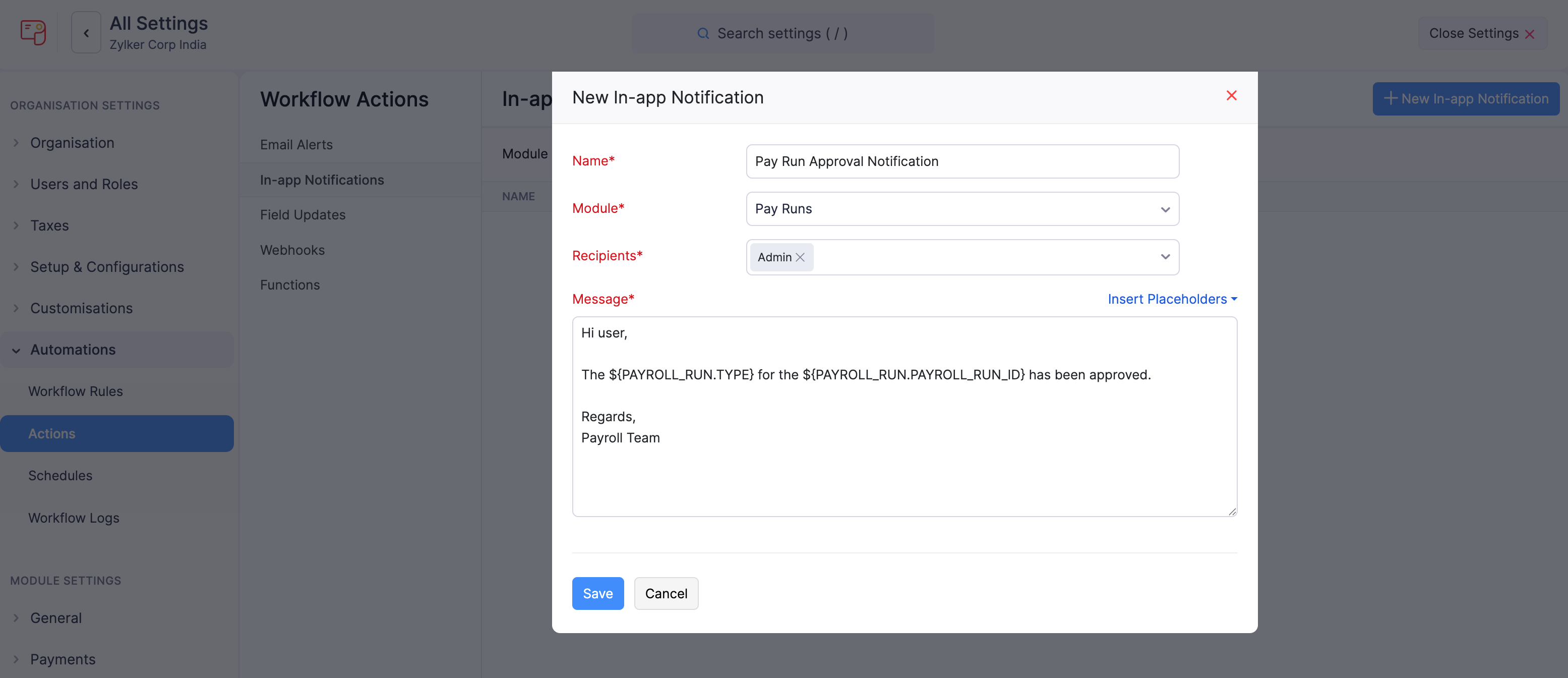
- Click Save.
The next time the associated workflow is triggered, the selected recipients will be notified through the Notifications icon in Zoho Payroll.
Associate In-app Notifications with Workflow Rules
The in-app notifications you create should be associated with workflow rules so that they are triggered automatically when the required conditions are met. To associate in-app notifications with workflow rules:
- Click Settings in the left sidebar.
- Click Workflow Rules under Automations.
- Click + New Workflow Rule in the top right corner.
- Enter the necessary details. See Workflow Rules.
- Under Actions, choose In-App Notifications as the Action Type and select the notification you want to associate with the workflow rule.
- Click Save.
Now, whenever the criteria are met, the workflow rule will be triggered, which in turn will trigger the in-app notification.
Edit an In-app Notification
If you want to update the details of an in-app notification, you can edit it. To edit:
- Click Settings in the left sidebar.
- Select Actions under Automations.
- In the Workflow Actions pane, select In-app Notifications.
- Hover over the in-app notification you want to edit, click the dropdown to the right, and select Edit.
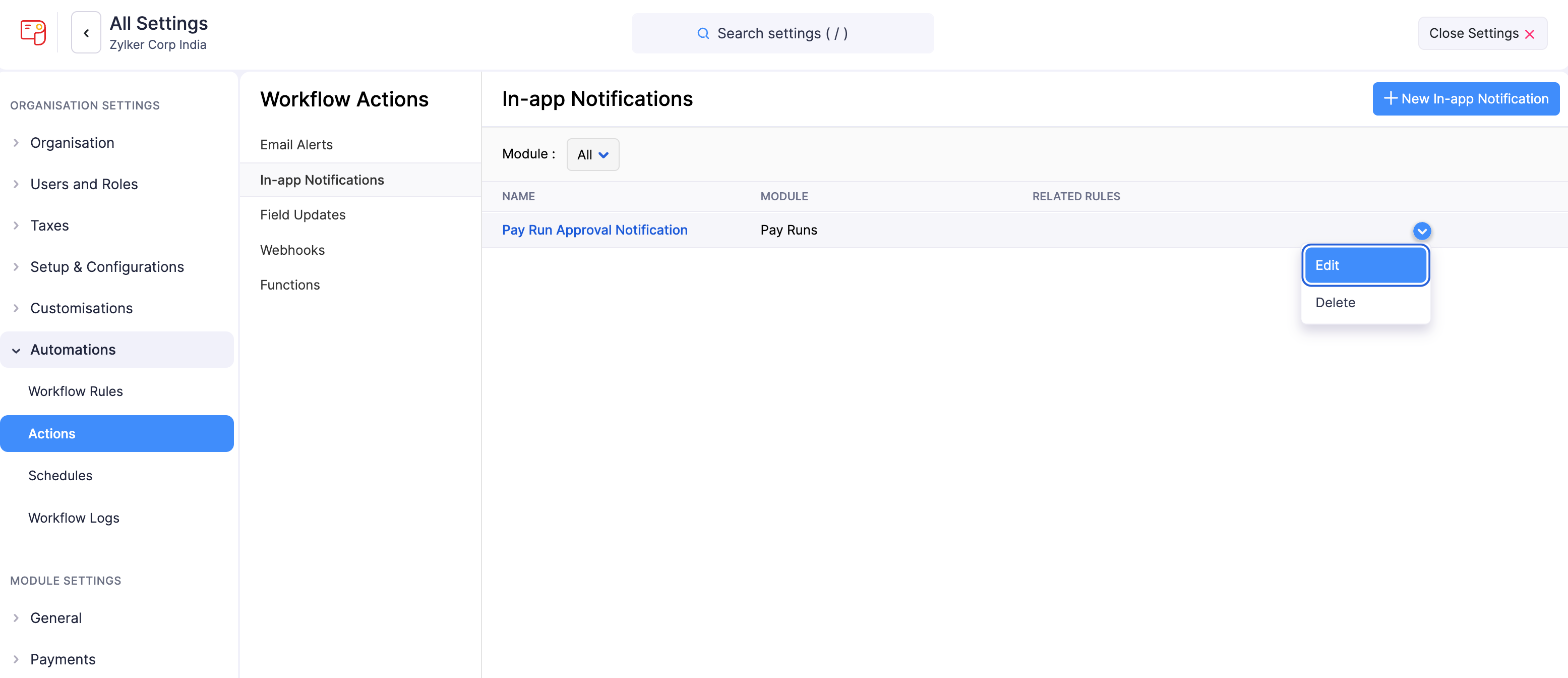
- Make the necessary changes and click Save.
Filter In-app Notifications
You can find in-app notifications easily by filtering them by the module for which they were created. To filter:
- Click Settings in the left sidebar.
- Select Actions under Automations.
- In the Workflow Actions pane, select In-app Notifications.
- Under Module, select a module from the dropdown.

The in-app notifications created for the selected module will be displayed.
Delete an In-app Notification
Warning: Deleting an in-app notification is permanent and cannot be undone. If the in-app notification is associated with a workflow rule, the workflow rule will not be executed.
If you no longer require certain in-app notifications, you can delete them. To delete:
- Click Settings in the left sidebar.
- Select Actions under Automations.
- In the Workflow Actions pane, select In-app Notifications.
- Hover over the in-app notification you want to delete, click the dropdown to the right, and select Delete.
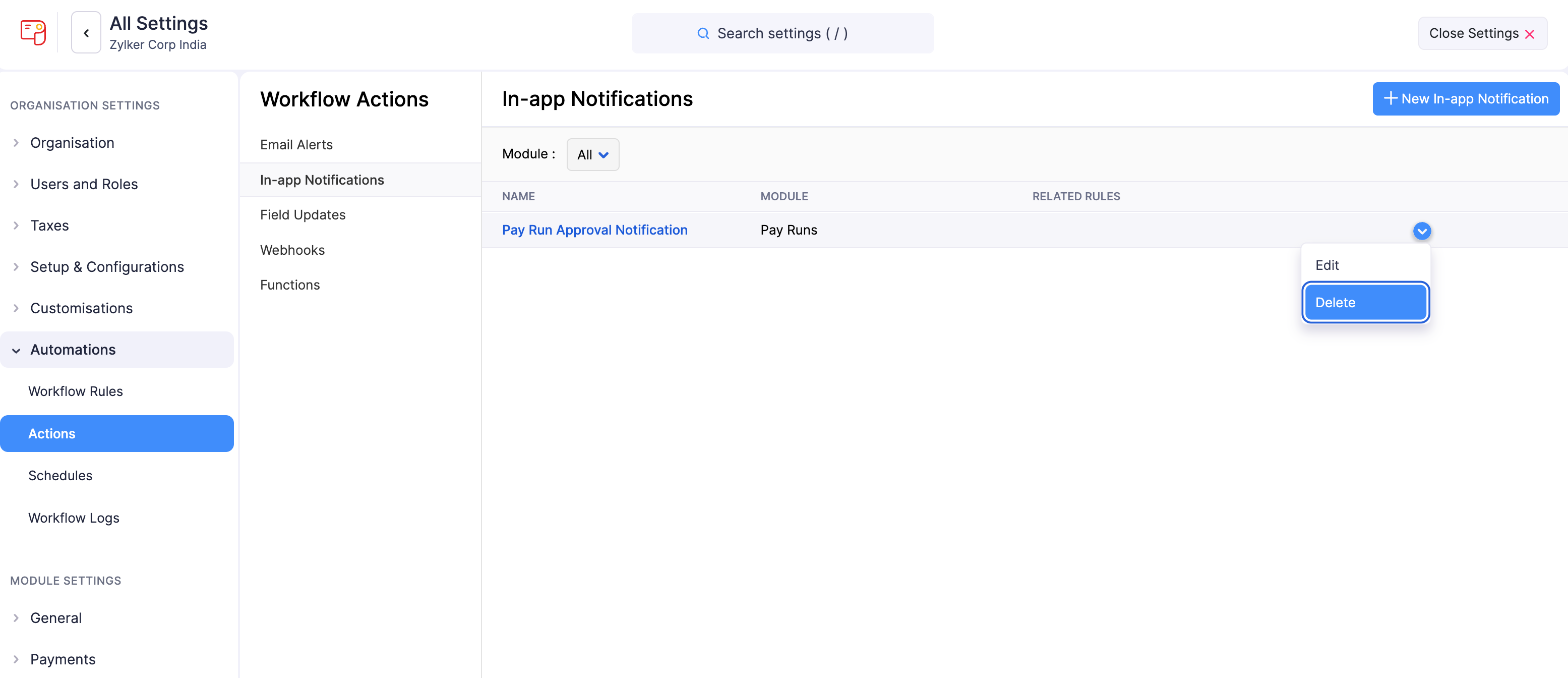
- Confirm your action by clicking Delete in the pop-up.