


Functions

Functions in Zoho Payroll let you write small pieces of code to automate your business processes. Whether you want to sync payroll data with an external system, push tailored alerts to third-party tools, or perform calculations based on specific conditions, you can write the code and link it to a workflow rule. The process is then automated for you. Unlike in-app notifications, which notify users within Zoho Payroll, functions let you send messages to external channels and services through code.
Note: When a function is triggered, it runs in the background, so it does not interrupt your work in Zoho Payroll. You can continue using the application while it executes.
Scenario: Ravi, the payroll administrator at Zylker Inc, wants to automatically sync employee salary details to an external HR management system every time an employee record is updated. Instead of manually exporting and importing data, he writes a custom function with a Deluge script that sends the updated details via an API call. He associates this function with a workflow rule that triggers when an employee record is edited, so the sync happens automatically.
What is Deluge?
Deluge (Data Enriched Language for the Universal Grid Environment) is an online scripting language integrated with Zoho services. It enables users to add logic to the application, incrementally, making it more powerful and robust.
To learn about Deluge, see the Deluge Reference Guide. To learn Deluge by writing code samples, see the Deluge code samples guide.
Create a Function
To create a function:
- Click Settings in the left sidebar.
- Click Actions under Automations.
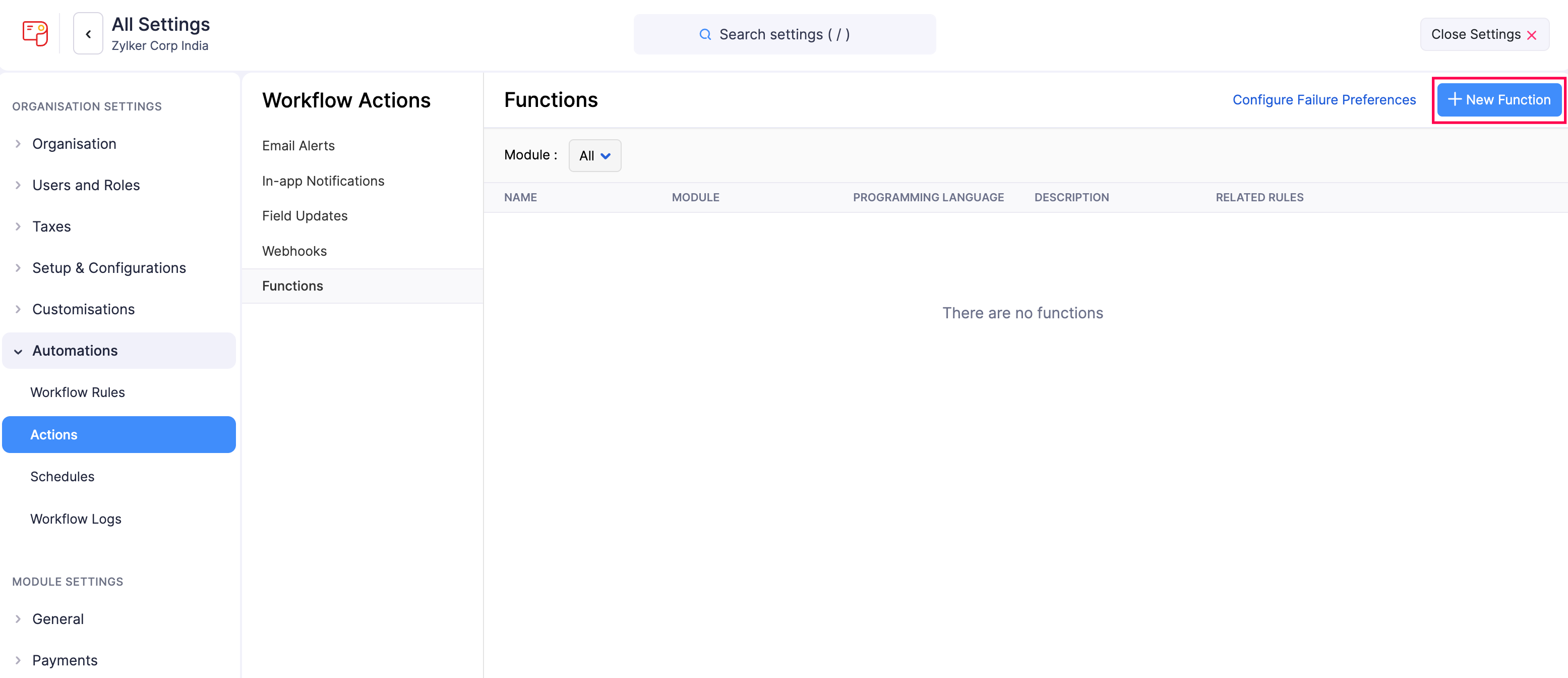
- In the Workflow Actions pane, select Functions.
- Click + New Function in the top right corner.
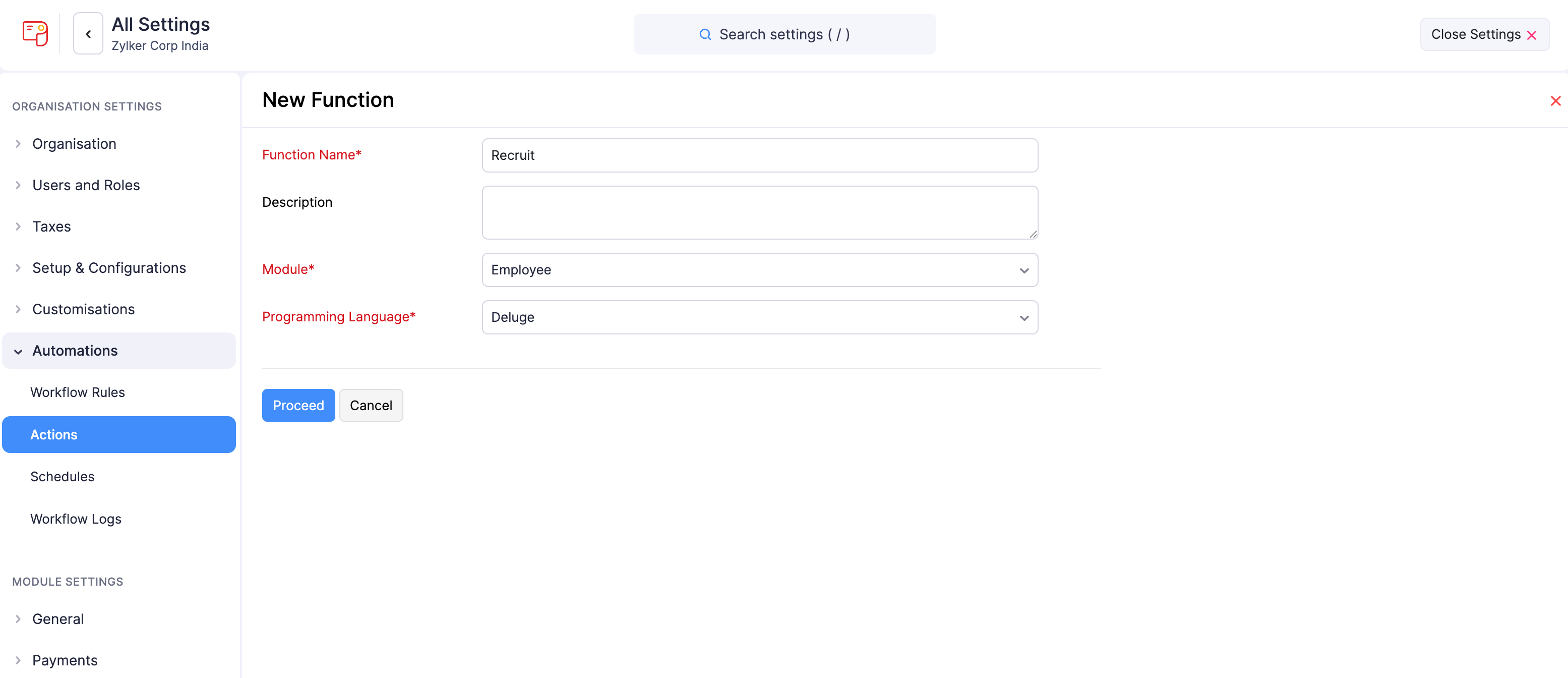
- On the New Function page:
- Enter a Function Name for your function.
- Provide a brief Description.
- Choose the Module for which you want to create the function.
- Choose the Programming Language in which you want to write the function’s code. The supported languages are Deluge, Java, Node.js, and Python.
- Click Proceed.
- If you choose Deluge, a visual editor opens where you can type in or drag the parameters to build your function. The editor provides building blocks for:
- Basic: Set variables, add comments, and log information.
- Condition: Add “if”, “else if”, or “else” logic.
- Notifications: Send emails or start chat notifications.
- Integrations: Trigger webhooks, use Zoho integrations, or invoke external APIs.
- If you choose Java, Node.js, or Python, you can write the function’s code using the Zoho Finance CLI. The CLI lets you download the function, write code in your preferred editor, test it locally, and push it back to Zoho Payroll. You can use context methods to interact with platform features such as logging, caching, queues, file storage, scheduled execution, and third-party connectors.
- Once done, click Save, or click Save and Execute to run the function immediately.
Custom Execution Status
When a function runs, the script can return a status code that explains what happened during execution. This helps the admin understand why a workflow was executed, blocked, or partially executed. You can view the execution status of each function in Workflow Logs.
To view or define these codes, click Custom Execution Status in the editor header. The following status codes are supported:
| Code | Meaning |
|---|---|
| 1000 | Success. The function executed and the workflow continues. |
| 1001 | Failure. The function executed but the workflow is treated as failed. |
| 1002 | Cancelled. The workflow action was cancelled by the function. |
| 1003 | Invalid input. One or more inputs to the function were not valid. |
| 1004 | Validation failed. A business validation inside the function did not pass. |
| 1005 | External service error. A call to an external service did not succeed. |
| 1006 | Permission denied. The function does not have the required permission to complete the action. |
| 1007 | Record not found. The record referenced by the function could not be located. |
| 1008 | Limit exceeded. A configured limit, such as API or Deluge component usage, was reached. |
| 1009 | Unknown error. The function failed for a reason not covered by the other codes. |
Note: To use custom execution status codes, your function should return a map that includes a status code and an optional message. The returned message is shown to the user when the workflow is blocked or fails.
View Deluge Components Usage
Functions are built using Deluge components, and each component has a daily usage limit. To check how much of each component your organisation has used so far, click View Deluge Components Usage in the Deluge editor header.
The Deluge Components Usage (per Day) panel lists each component with its Total, Used, and Remaining counts for the current day.
Connections
Connections let you authenticate calls from your Deluge script to Zoho services and third-party applications without storing credentials inside the script. To manage connections used by your functions, click Connections in the Deluge editor header. You can create new connections, edit existing ones, and use them inside your script using the standard Deluge connection syntax.
Associate Functions with Workflow Rules
The functions you create should be associated with workflow rules so that they are triggered automatically when the required conditions are met. To associate functions with workflow rules:
- Click Settings in the left sidebar.
- Select Workflow Rules under Automations.
- Click + New Workflow Rule in the top right corner.
- Enter the necessary details. See Workflow Rules.
- Under Actions, choose Functions as the Action Type and select the function you want to associate with the workflow rule.
- Click Save.
Now, whenever the criteria are met, the workflow rule will be triggered, which in turn will trigger the function.
Edit a Function
If you want to update the details of a function, you can edit it. To edit:
- Click Settings in the left sidebar.
- Click Actions under Automations.
- In the Workflow Actions pane, select Functions.
- Hover over the function you want to edit, click the dropdown to the right, and select Edit.
- Make the necessary changes and click Save.
Filter Functions
You can find functions easily by filtering them by the module for which they were created. To filter:
- Click Settings in the left sidebar.
- Click Actions under Automations.
- In the Workflow Actions pane, select Functions.
- Under Module, select a module from the dropdown. The functions created for the selected module will be displayed.
Delete a Function
Warning: Deleting a function is permanent and cannot be undone. If the function is associated with a workflow rule, the workflow rule will not be executed.
If you no longer require certain functions, you can delete them. To delete:
- Click Settings in the left sidebar.
- Click Actions under Automations.
- In the Workflow Actions pane, select Functions.
- Hover over the function you want to delete, click the dropdown to the right, and select Delete.
- Confirm your action by clicking Delete in the pop-up.