


Webhooks

Webhooks facilitate communication with third-party applications by sending instant web notifications every time an event occurs in Zoho Payroll. With webhooks, you can configure HTTP and HTTPS URLs and associate them with workflow rules to automate the notification process. When a webhook is triggered, the relevant record details in your Zoho Payroll organisation are shared with the configured URL.
Scenario: Zylker Technologies uses a project management tool to track payroll tasks. The finance team wants to receive an automatic update in their project management tool whenever a new pay run is created in Zoho Payroll. By setting up a webhook with the tool’s API URL and associating it with a workflow rule, Zoho Payroll sends the pay run details to the project management tool as soon as a pay run is created. No custom code is needed, as the webhook simply pushes the data to the configured URL.
Create a Webhook
To set up a webhook:
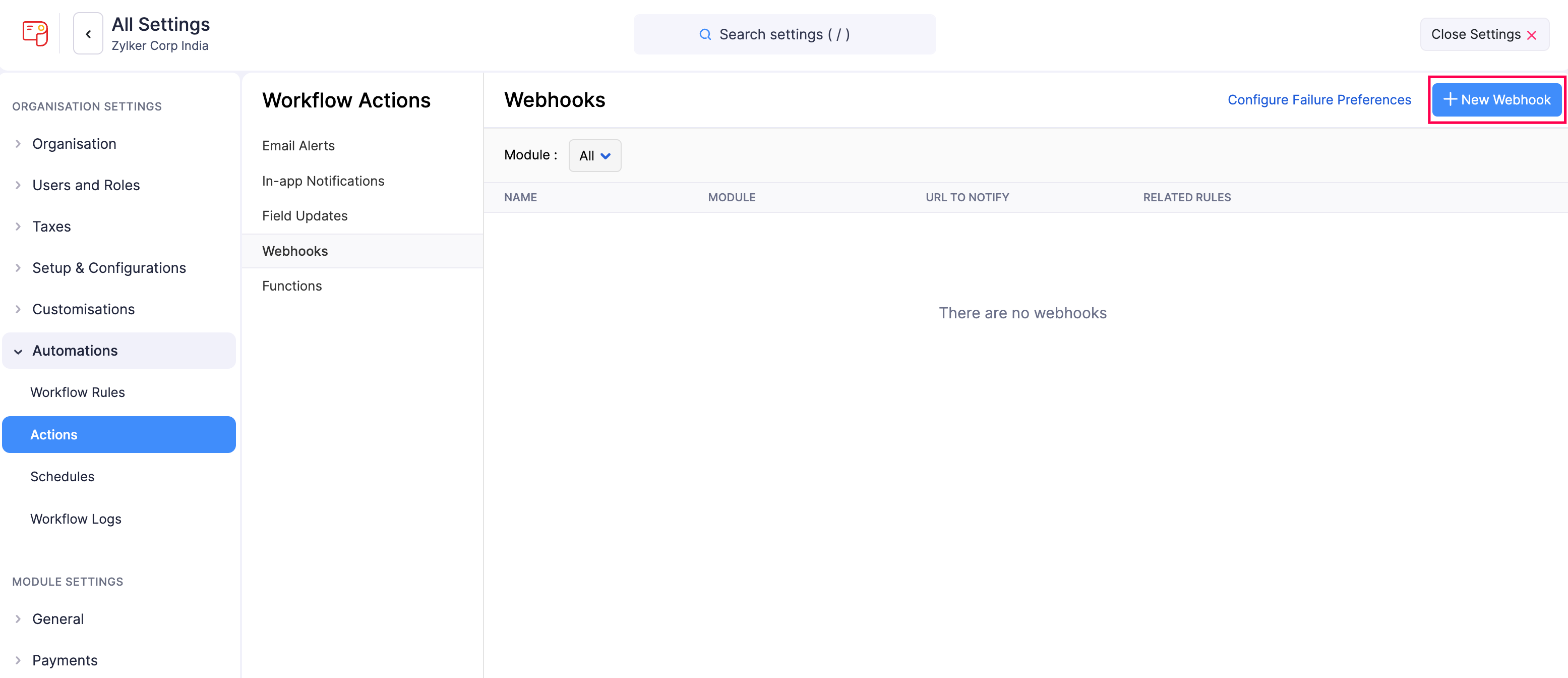
- Click Settings in the left sidebar.
- Click Actions under Automations.
- In the Workflow Actions pane, select Webhooks.
- Click + New Webhook in the top right corner.
- On the New Webhook page, fill in the necessary details:
| Field | Description |
|---|---|
| Name | Enter a name for the webhook. |
| Module | Select the module for which you want to create the webhook. |
| Description | Add a description if necessary. |
| URL & Parameters | Select the API method (POST, PUT, or DELETE) and enter the URL of the external service provider’s API. Click Add Parameters to include additional query parameters. |
| Headers | Add any additional information to be included in the HTTP request. Enter a Key and a Value. Click + Add New Header to add more headers. |
| I want to secure this webhook | Check this option to secure the webhook with a secret token. The token must be alphanumeric and between 12 and 50 characters. This helps verify whether the webhook was sent from Zoho Payroll. |
| Authorisation Type | Select how you want to authorise access to the external service provider’s URL: Self Authorisation: Use basic authorisation, API authorisation, or no authorisation. Connections: Use a connection created between Zoho Payroll and a third-party application to authorise this webhook. |
| Body | Choose how you want to send the data: Default Payload: All parameters associated with the module are sent in application/JSON format. form-data: Data is sent as multipart form data. x-www-form-urlencoded: Data is encoded and sent to the server. Raw: Choose the parameters sent to the request body in application/JSON format. |
- Click Save and Execute to check if the webhook works properly, or click Save if you want to execute it later.
Associate Webhooks with Workflow Rules
The webhooks you create should be associated with workflow rules so that they are triggered automatically when the required conditions are met. To associate webhooks with workflow rules:
- Click Settings in the left sidebar.
- Select Workflow Rules under Automations.
- Click + New Workflow Rule in the top right corner.
- Enter the necessary details. See Workflow Rules.
- Under Actions, choose Webhooks as the Action Type and select the webhook you want to associate with the workflow rule.
- Click Save.
Now, whenever the criteria are met, the workflow rule will be triggered, which in turn will trigger the webhook.
Note: You can create only 1 webhook for each workflow rule.
What Happens When a Webhook Is Delivered?
When a webhook is triggered, Zoho Payroll attempts to deliver it to your endpoint URL. The sections below explain how deliveries are evaluated, retried, and reported in Workflow Logs.
Webhook Delivery Status
Every webhook delivery results in one of these statuses in Workflow Logs:
- Success: The endpoint responded with a 2xx status code within the timeout window.
- Failed: The delivery received a non-2xx response or timed out.
- Skipped: The delivery was not attempted, typically when the daily limit is reached.
If a retry is scheduled for a failed delivery, the next retry time is displayed alongside the status.
Timeout Behaviour
If your endpoint does not respond within the configured timeout window, the attempt is marked as failed.
What Counts as a Failure?
Any non-2xx response, including 3xx redirects, 4xx client errors, 5xx server errors, and timeouts, is treated as a failure and is eligible for retry. If your endpoint URL has a redirect configured, update the webhook URL to the final destination directly.
Default Retry Policy
Failed webhooks are automatically retried a few times before being marked as exhausted. Retried deliveries carry the same original payload, so design your endpoint to handle duplicate deliveries safely.
Custom Retry Policy
You can configure a custom number of retry attempts, along with a choice of retry method: fixed interval (the same wait time between each retry), additive (the wait time increases by a fixed amount after each retry), or multiplicative (the wait time is multiplied by a set factor after each retry). To set this up, open the Webhooks section in How to Handle Failed Workflow Actions on the Workflow Logs page.
Failure Notifications
If a webhook fails consecutively beyond the configured threshold, a notification is sent to the recipients configured under the Webhooks section in How to Handle Failed Workflow Actions.
Manual Retry
Exhausted webhooks can be manually retried from Workflow Logs at any time.
Secure Your Webhooks
Securing your webhooks can help verify that the webhooks were sent from Zoho Payroll. To do this, set up your server so that it listens for webhooks from Zoho Payroll. When your server receives a webhook, a hash value must be generated based on the payload and your secret token. Once done, check if it matches the hash value from Zoho Payroll and thereby validate the source of the webhook. This adds a layer of security by enabling your server to disregard third-party webhooks pretending to originate from Zoho Payroll.
Validate Webhooks
When your server receives the webhook, a hash value will have to be generated for the payload in the same way that Zoho Payroll generated it. This is necessary to produce the same hash value to validate the webhook.
The following parameters (if available) are used to generate the hash value:
- Query string parameters.
- Default payload or customised raw JSON payload.
- x-www-form-urlencoded payload (key-value pairs).
Construct a string by sorting the payload’s key-value pairs in alphabetical order. The pairs must be sorted in alphabetical order with respect to their keys.
Note:
- If your webhook contains query string parameters, ensure that those key-value pairs are sorted along with the payload’s key-value pairs.
- There cannot be any spaces between the key-value pairs.
Once you have sorted the key-value pairs and constructed the string, append the raw JSON to the end of the string.
The hash value can be computed by applying the HMAC-SHA256 algorithm on this string, along with the secret token that was used in Zoho Payroll.
You can then validate the webhook by checking if the hash value computed from your side matches the one in the header (X-Zoho-Webhook-Signature) of the webhook from Zoho Payroll.
Edit a Webhook
If you want to update the details of a webhook, you can edit it. To edit:
- Click Settings in the left sidebar.
- Click Actions under Automations.
- In the Workflow Actions pane, select Webhooks.
- Hover over the webhook you want to edit, click the dropdown to the right, and select Edit.
- Make the necessary changes and click Save.
Filter Webhooks
To filter the webhooks list:
- Click Settings in the left sidebar.
- Click Actions under Automations.
- In the Workflow Actions pane, select Webhooks.
- Under Module, select a module from the dropdown for which the webhook was created.
Based on your selection, the corresponding webhooks will be displayed as a list.
Delete a Webhook
Warning: Deleting a webhook is permanent and cannot be undone. If the webhook is associated with a workflow rule, the workflow rule will not be executed.
To delete a webhook:
- Click Settings in the left sidebar.
- Click Actions under Automations.
- In the Workflow Actions pane, select Webhooks.
- Hover over the webhook you want to delete and click the Delete icon.
- In the pop-up that appears, click Yes to confirm.