

Email Alerts

Email Alerts in Zoho Payroll are automated email notifications sent when specific actions configured in an associated workflow rule are triggered. They ensure that the right stakeholders are informed at the right time.
Scenario: At Zylker Inc, the HR team wants to be notified as soon as a pay run is created so they can review it promptly. By setting up an email alert for pay run creation and associating it with a workflow rule, the HR team receives an automatic email the moment a new pay run is created, eliminating the need for manual follow-ups.
Create an Email Alert
To associate email alerts with workflow rules, you must first create them. To create an email alert:
- Click Settings in the left sidebar.
- Click Actions under Automations.
- In the Workflow Actions pane, select Email Alerts.
- Click + New Email Alert in the top right corner.
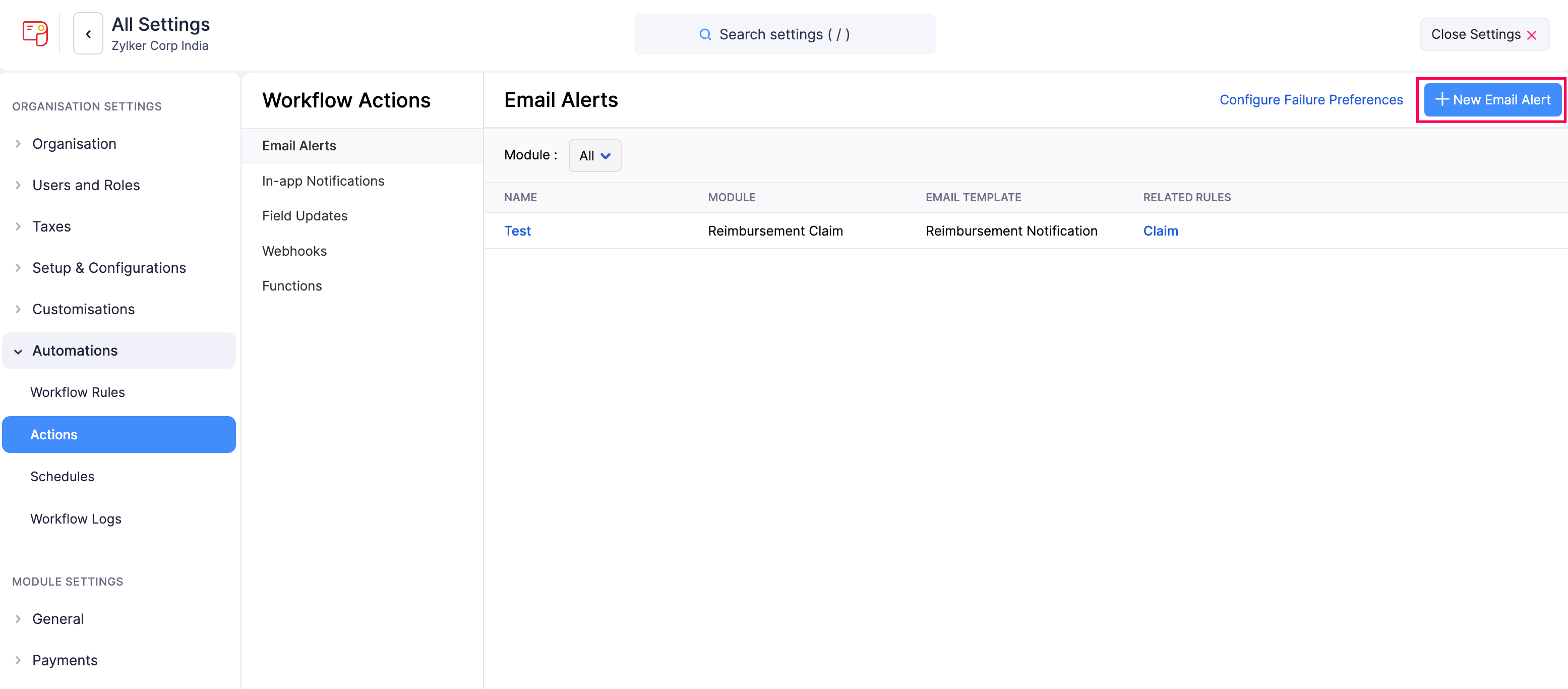
- In the New Email Alert form, fill in the following fields:
| Field | Description |
|---|---|
| Name | Enter a name for the email alert. |
| Module | Select the module for which you want to create the email alert. |
| From | Select the sender displayed in the recipient’s mailbox. |
| Email Template | Select an existing email template from the dropdown. |
| Email Recipients | Select the users and roles to be notified. |
| Cc | Enter the email addresses of additional recipients who should receive a copy of the email for visibility. |
| Bcc | Enter the email addresses of recipients who should receive a copy of the email without their addresses being visible to other recipients. |
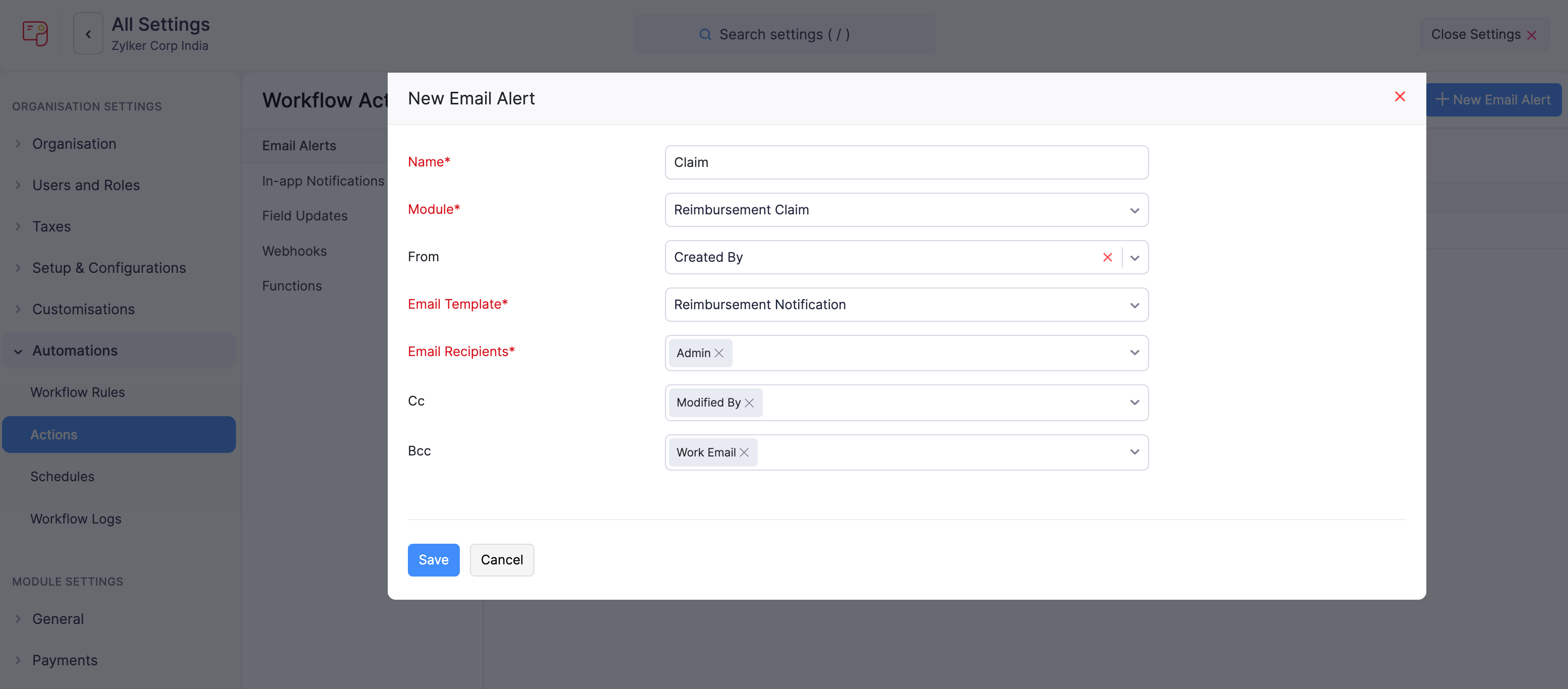
- Click Save.
Associate Email Alerts with Workflow Rules
Associate the email alerts you create with workflow rules to trigger them automatically when the required conditions are met.
To associate email alerts with workflow rules:
- Click Settings in the left sidebar.
- Click Workflow Rules under Automations.
- Click + New Workflow Rule in the top right corner and enter the necessary details. See Workflow Rules.
- Under Actions, choose Email Alerts as the Action Type and select the email alert you want to associate with the workflow rule.
- Click Save.
Now, whenever the criteria are met, the workflow rule will be triggered, which in turn will trigger the email alert.
Note: You can create a maximum of 5 email alerts for each workflow rule.
Edit an Email Alert
If you want to update the details of an email alert, you can edit it. To edit:
- Click Settings in the left sidebar.
- Click Actions under Automations.
- In the Workflow Actions pane, select Email Alerts.
- Hover over the email alert you want to edit, click the dropdown to the right, and select Edit.
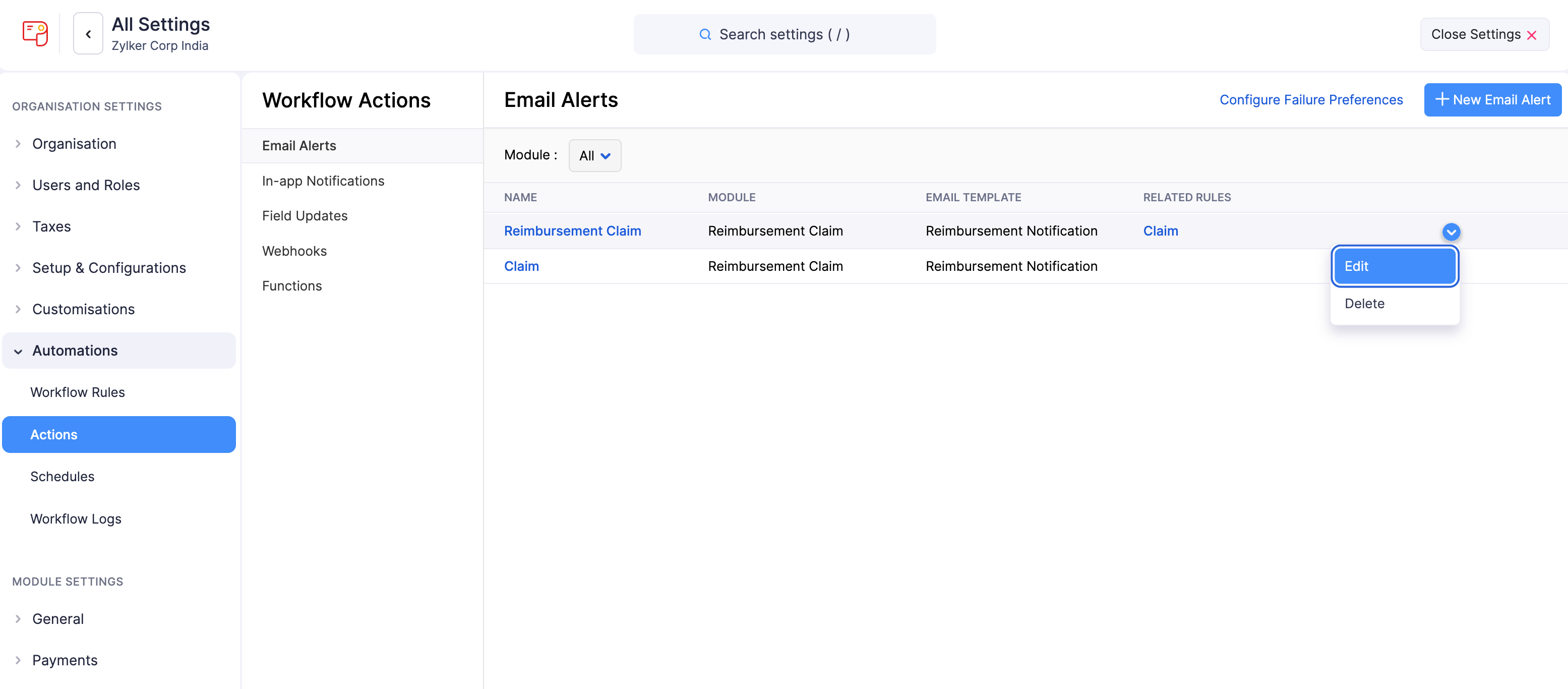
- Make the necessary changes and click Save.
Filter Email Alerts
To filter the email alerts list:
- Click Settings in the left sidebar.
- Click Actions under Automations.
- In the Workflow Actions pane, select Email Alerts.
- Under Module, select a module from the dropdown for which the email alert has been created.

Based on your selection, the corresponding email alerts will be displayed as a list.
Delete an Email Alert
Warning: Deleting an email alert is permanent and cannot be undone. If the email alert is associated with a workflow rule, the workflow rule will not be executed.
To delete an email alert:
- Click Settings in the left sidebar.
- Click Actions under Automations.
- In the Workflow Actions pane, select Email Alerts.
- Hover over the email alert you want to delete and click the Delete icon.
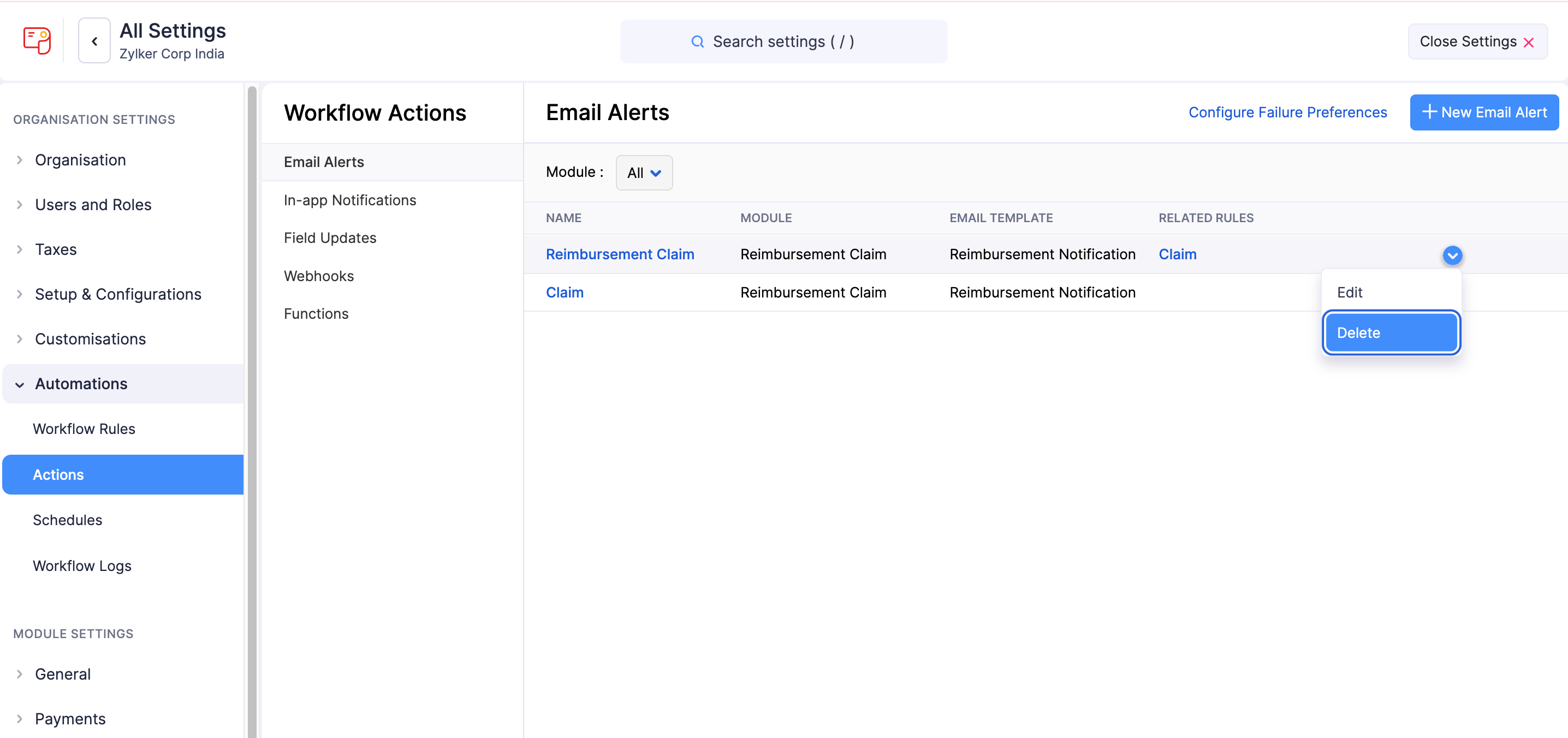
- In the pop-up that appears, click Yes to confirm.
How to Handle Failed Email Alerts
You can configure how Zoho Payroll notifies you when email alerts fail. To set this up:
- Click Settings in the left sidebar.
- Click Actions under Automations.
- In the Workflow Actions pane, select Email Alerts.
- Click Configure Failure Preferences in the top right corner.
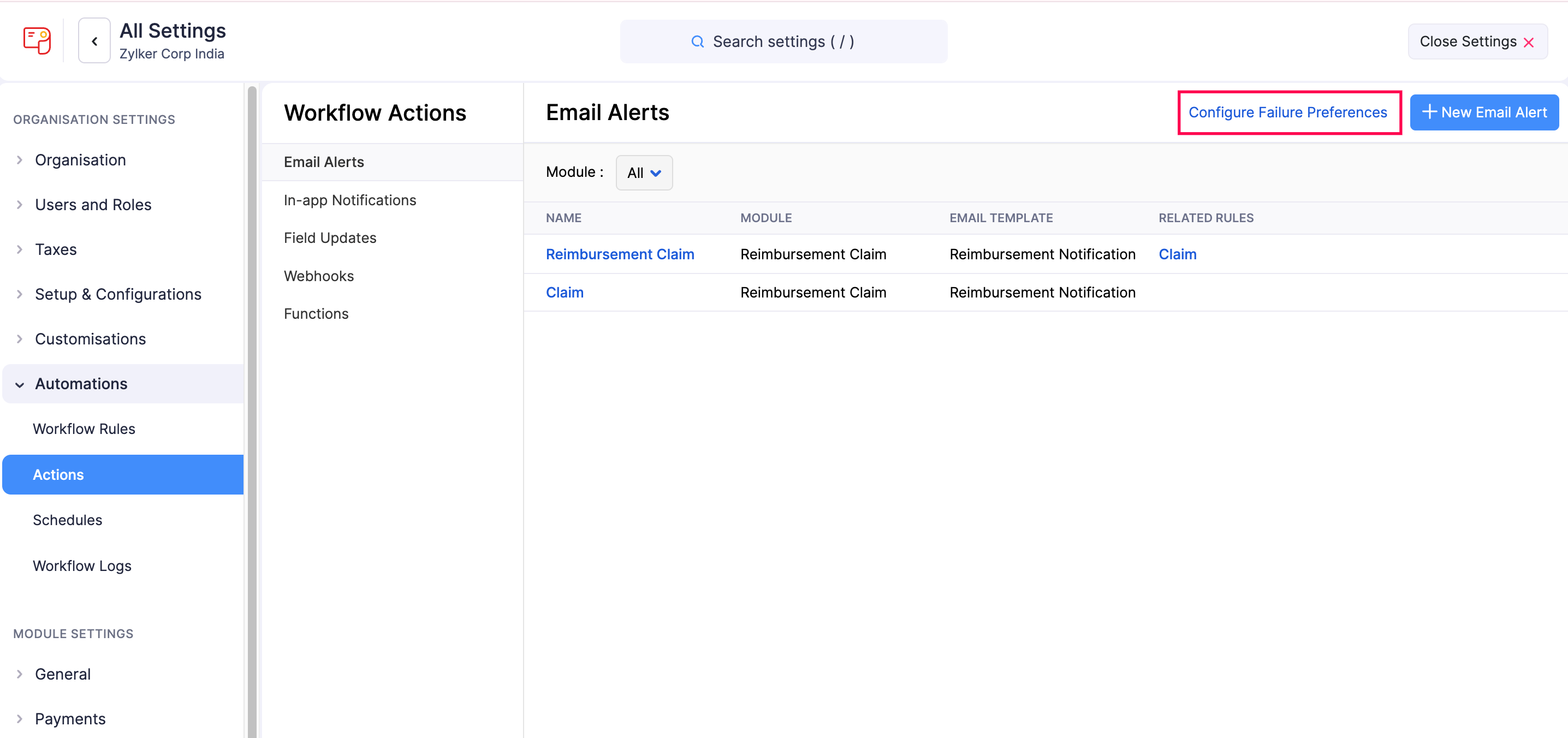
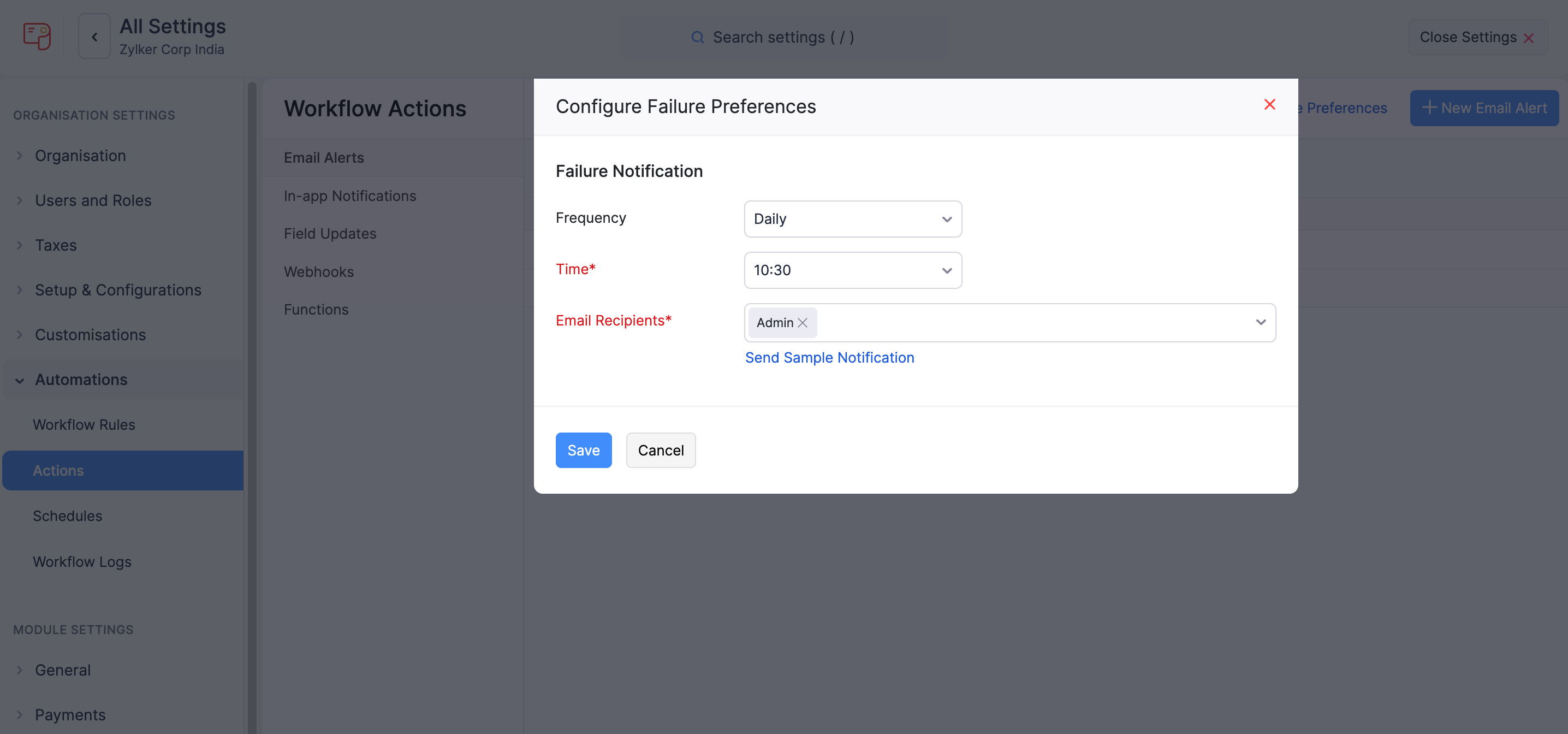
Under Failure Notification, set the following fields:
Frequency: How often the digest email is sent. Choose Hourly, Daily, Weekly, or Monthly.
Time: The time of day at which the digest email is sent.
Email Recipients: The users who receive the digest email.
Click Save.
For the full configuration steps covering all action types, see How to Handle Failed Workflow Actions.