


Field Updates

Using Field Updates, you can have the system automatically update fields of a particular module when a workflow rule is triggered. For example, you can automatically update an employee’s department field when a specific condition is met.
Scenario: At Zylker Inc, Asha, the HR manager, wants to automatically update the designation field for employees when they are moved to a new department. She creates a field update that changes the designation and associates it with a workflow rule, so qualifying employee records are updated automatically without her having to edit each one by hand.
Create a Field Update
To associate field updates with workflow rules, you must first create them. To create a field update:
- Click Settings in the left sidebar.
- Click Actions under Automations.
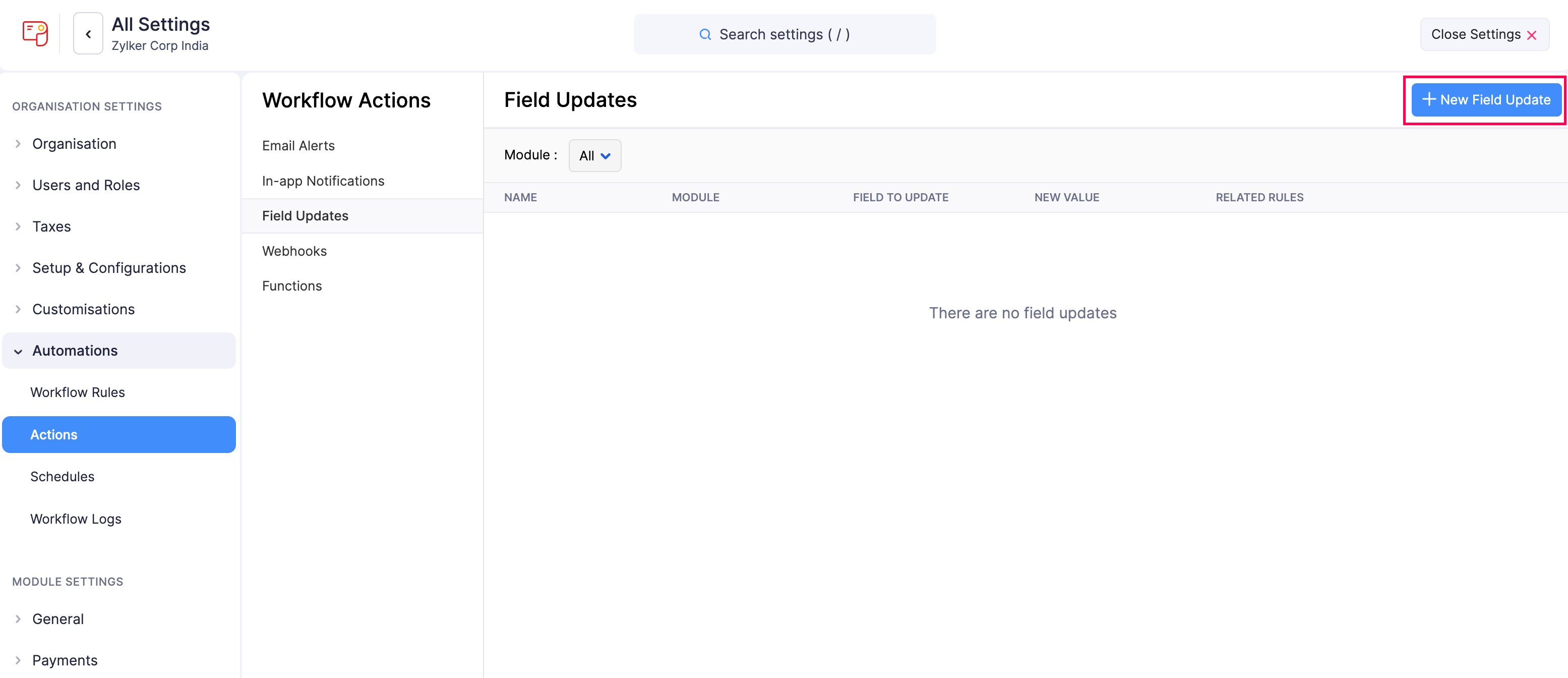
- In the Workflow Actions pane, select Field Updates.
- Click + New Field Update in the top right corner.
- Fill in the following fields:
- Name: Enter a name for the field update.
- Module: Select the module for which you want to create the field update.
- Update: Select the field you want to update from the dropdown, choose the operator, and enter the value. Check Update [Field Name] with empty value? if you want to update the field with an empty value.
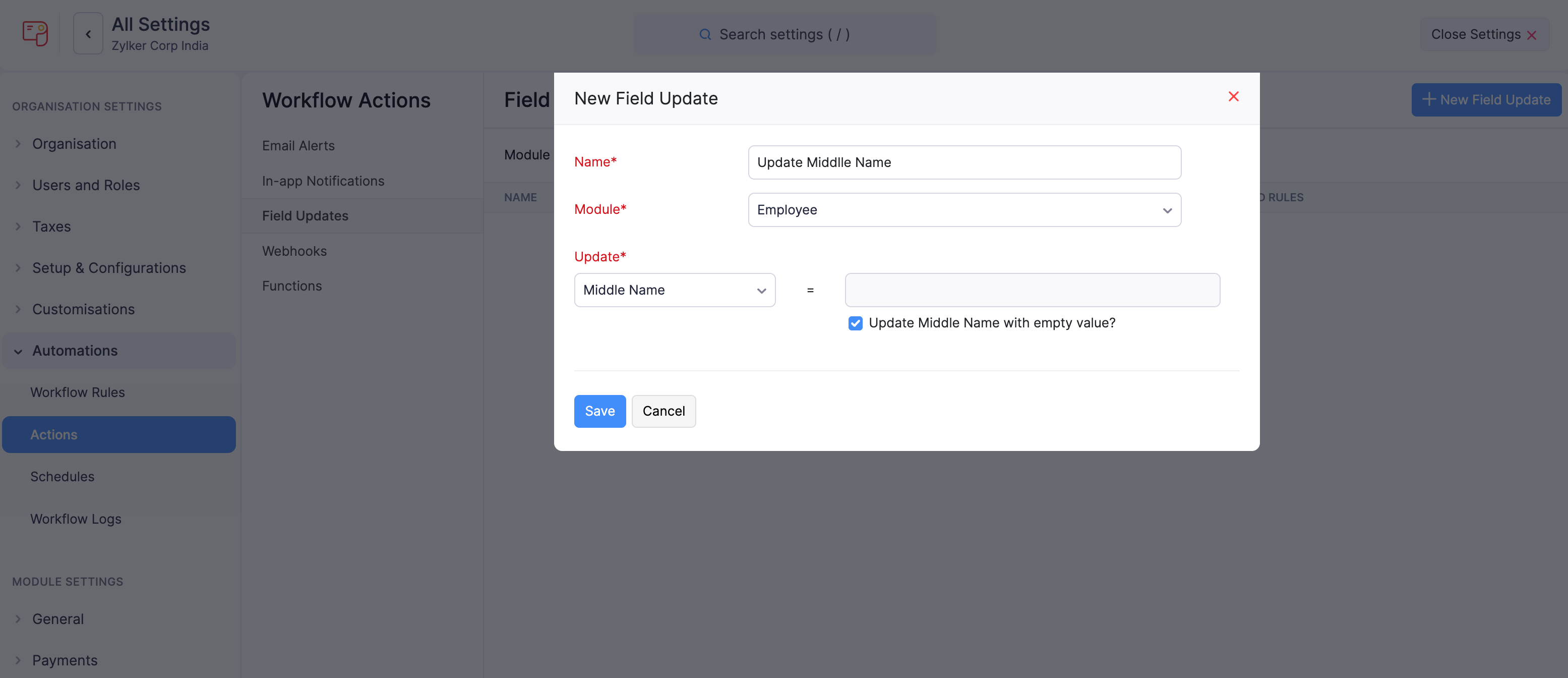
- Click Save.
Associate Field Updates with Workflow Rules
The field updates you create should be associated with workflow rules so that they are triggered automatically when the required conditions are met. To associate field updates with workflow rules:
- Click Settings in the left sidebar.
- Select Workflow Rules under Automations.
- Click + New Workflow Rule in the top right corner.
- Enter the necessary details. See Workflow Rules.
- Under Actions, choose Field Updates as the Action Type and select the field update you want to associate with the workflow rule.
- Click Save.
Now, whenever the criteria are met, the workflow rule will be triggered, which in turn will execute the field update.
Note: You can create a maximum of 3 field updates for each workflow rule.
Edit a Field Update
If you want to update the details of a field update, you can edit it. To edit:
- Click Settings in the left sidebar.
- Click Actions under Automations.
- In the Workflow Actions pane, select Field Updates.
- Hover over the field update you want to edit, click the dropdown to the right, and select Edit.
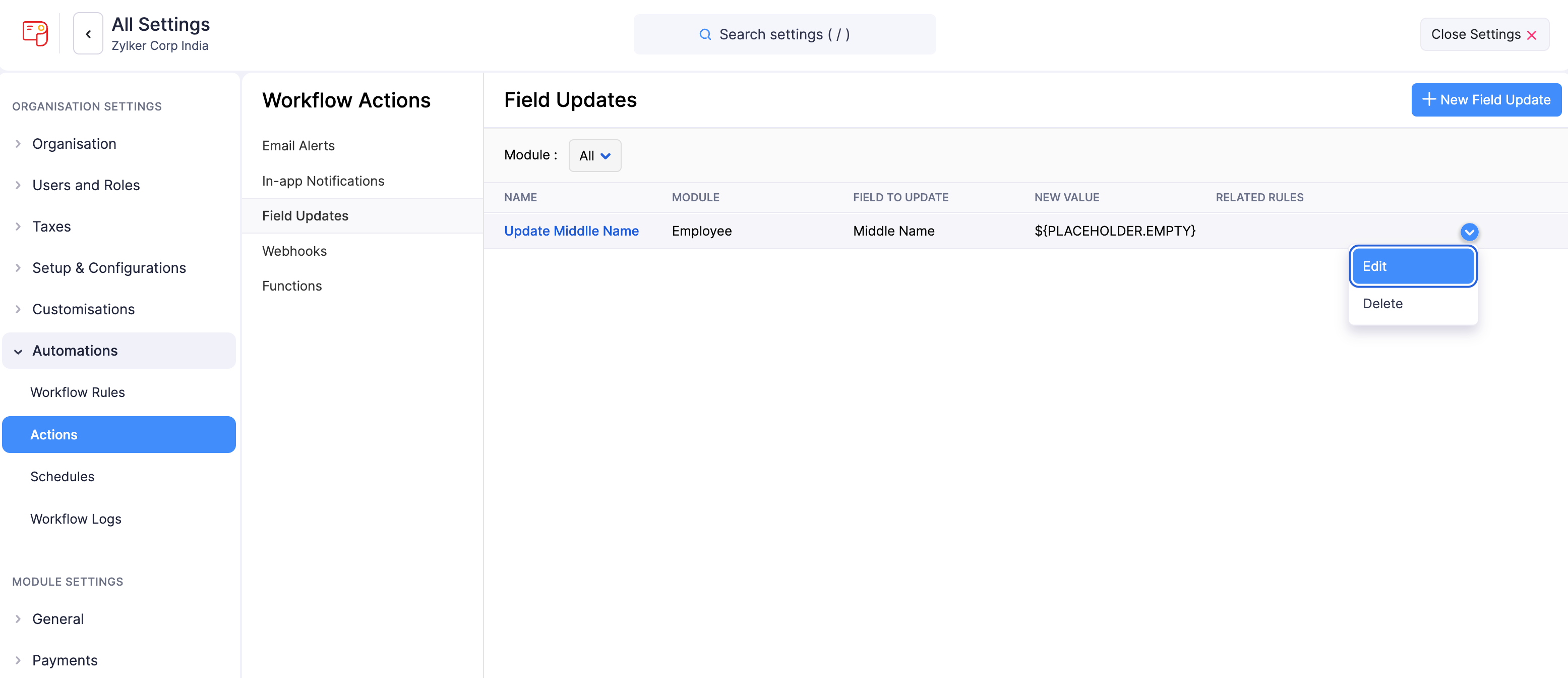
- Make the necessary changes and click Save.
Filter Field Updates
To filter the field updates:
- Click Settings in the left sidebar.
- Click Actions under Automations.
- In the Workflow Actions pane, select Field Updates.
- Under Module, select a module from the dropdown for which the field update has been created.
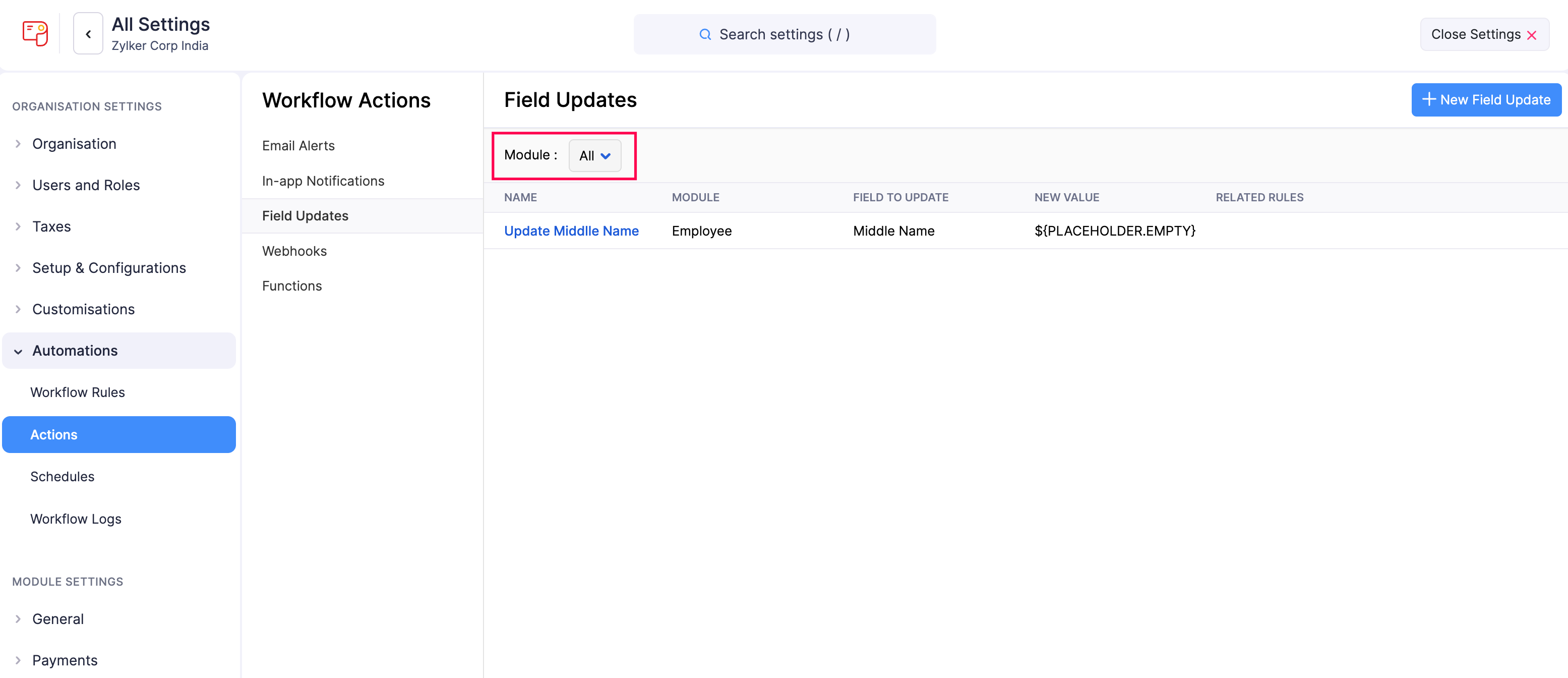
Based on your selection, the corresponding field updates will be displayed as a list.
Delete a Field Update
Warning: Deleting a field update is permanent and cannot be undone. If the field update is associated with a workflow rule, the workflow rule will not be executed.
To delete a field update:
- Click Settings in the left sidebar.
- Click Actions under Automations.
- In the Workflow Actions pane, select Field Updates.
- Hover over the field update you want to delete and click the Delete icon.
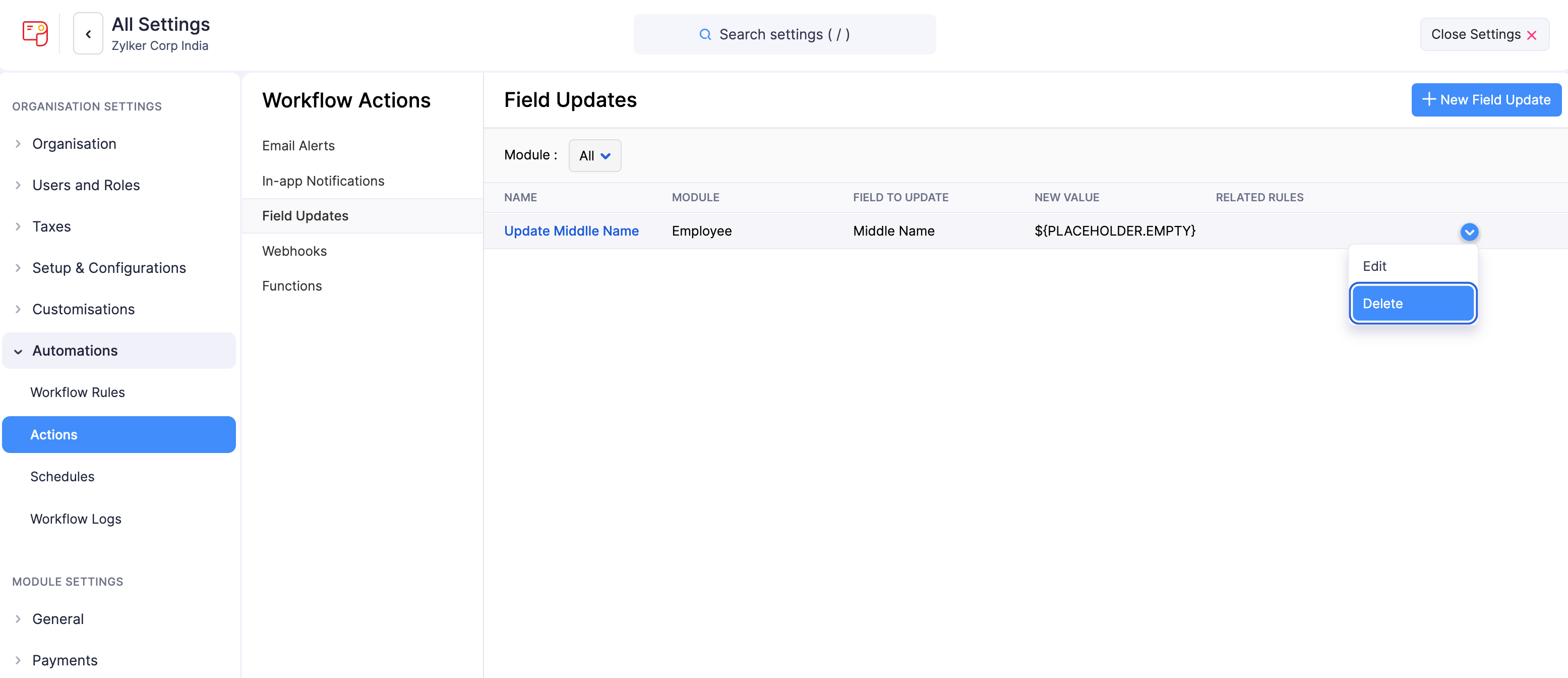
- In the pop-up that appears, click Yes to confirm.