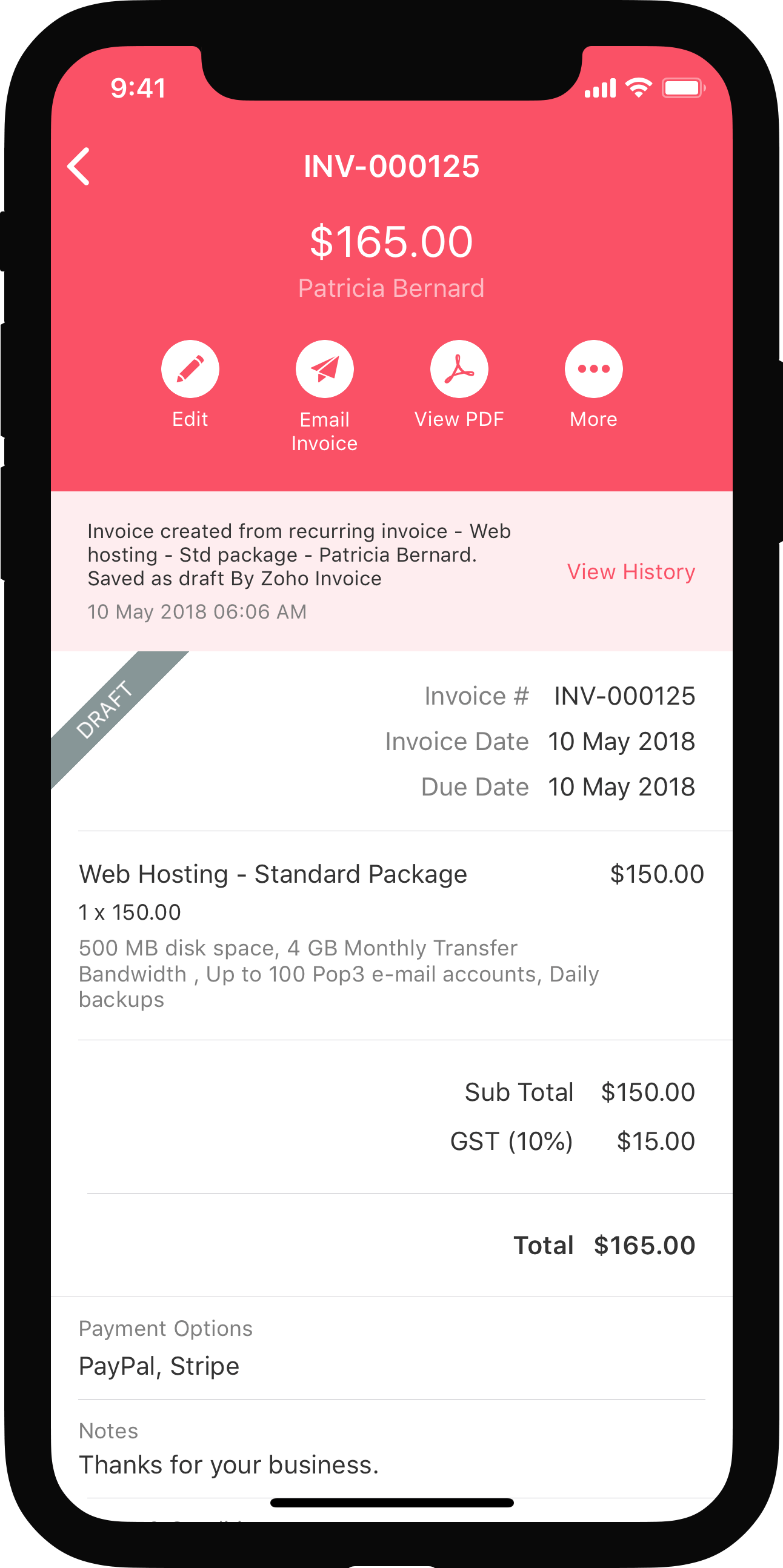

Other actions
- Expected Delivery Date
- Cancelling Purchase Orders
- Cancel Items in a Purchase Order
- Importing Purchase Orders
- Other Actions
Expected Delivery Date
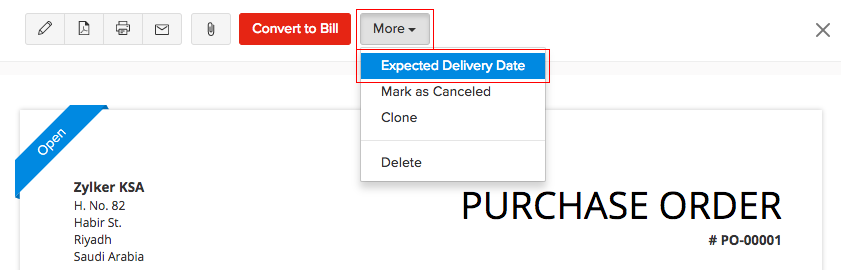
You can set an expected delivery date for the purchase order items. Here’s how:
- Go to the Purchases module on the left sidebar.
- Select Purchase Orders.
- Select any purchase order.
- Click the More button in the top right corner of the page.
- Select Expected Delivery Date.
- Enter the date and click Save.
Canceling Purchase Orders
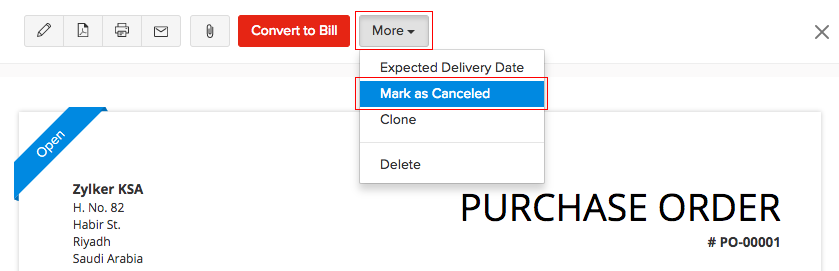
You can choose to mark a purchase order as cancelled if it is not valid anymore. Only Open purchase orders can be cancelled. To cancel a purchase order:
- Go to the Purchases module on the left sidebar.
- Select Purchase Orders.
- Select a purchase order to cancel.
- Click the More button in the top right corner of the page.
- Select Mark as Canceled.
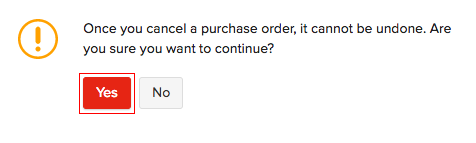
- Click Yes to confirm.
Cancel Items in a Purchase Order
In case you’ve ordered extra items or have changed your mind about certain items in your purchase orders, you can choose to cancel those items. To do this:
- Go to the Purchase Orders module from the sidebar.
- Select the purchase order for which you’d like to cancel items.
- Click the More dropdown and select Cancel Items.
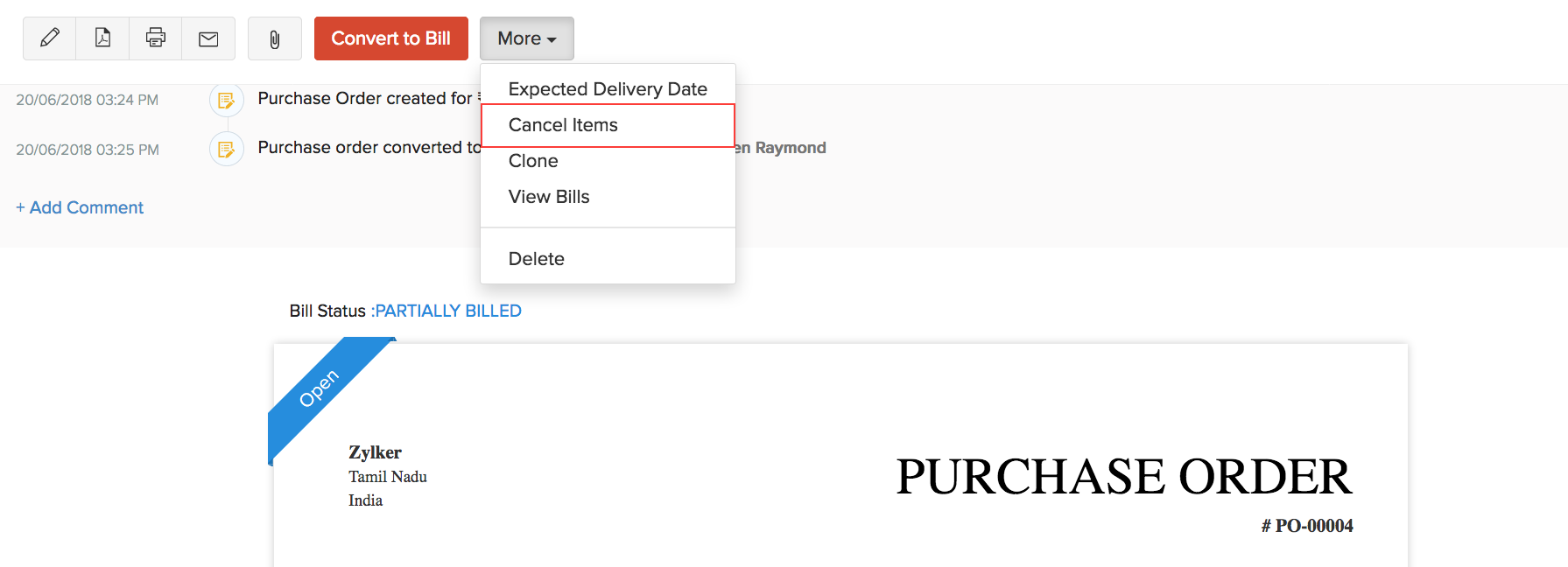
- Select the items that you’d like to cancel along with the quantity to be canceled and click Save.
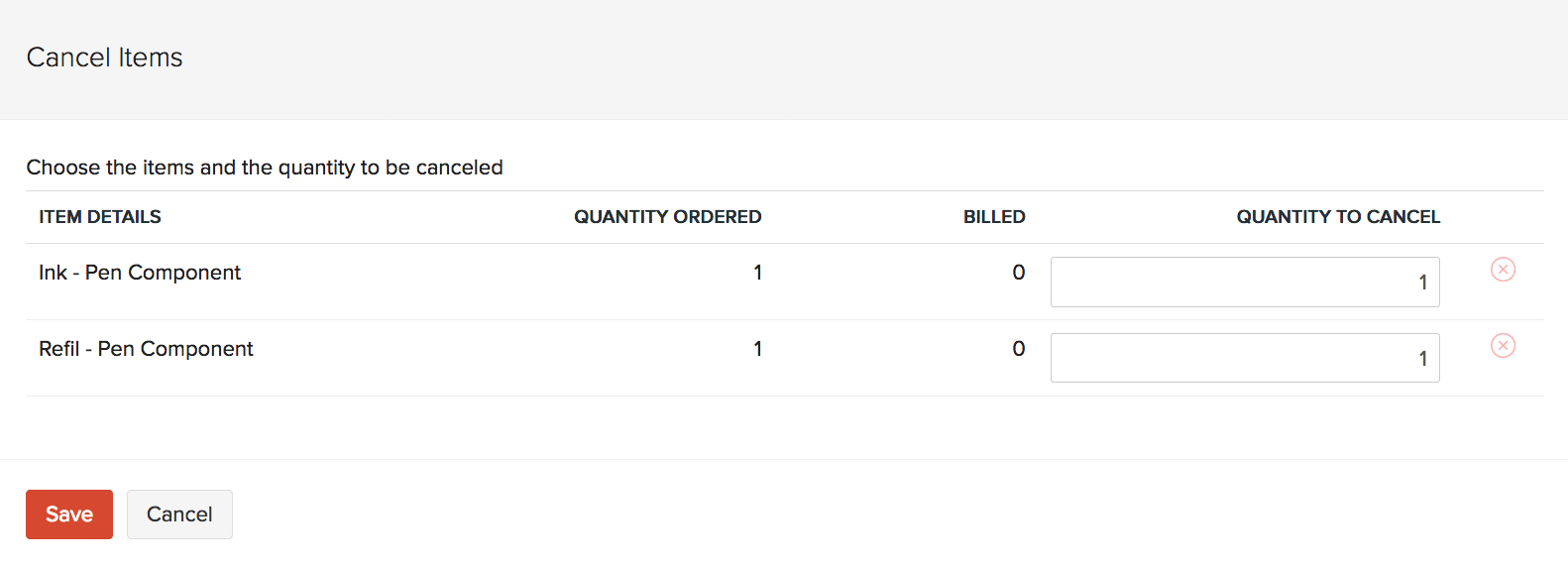
Now, the items that you’ve selected will be canceled and the status of your purchase order will be changed to Closed.
In case you’d like to undo this, Click the More dropdown and select Reopen Canceled Items. This will change the status of your purchase order back to Open.
Note: You can only cancel items in purchase orders that are partially billed. The item that was left out of the bill can then be cancelled in the purchase order.
You can view the items that were cancelled from a purchase order under the Canceled Items tab.
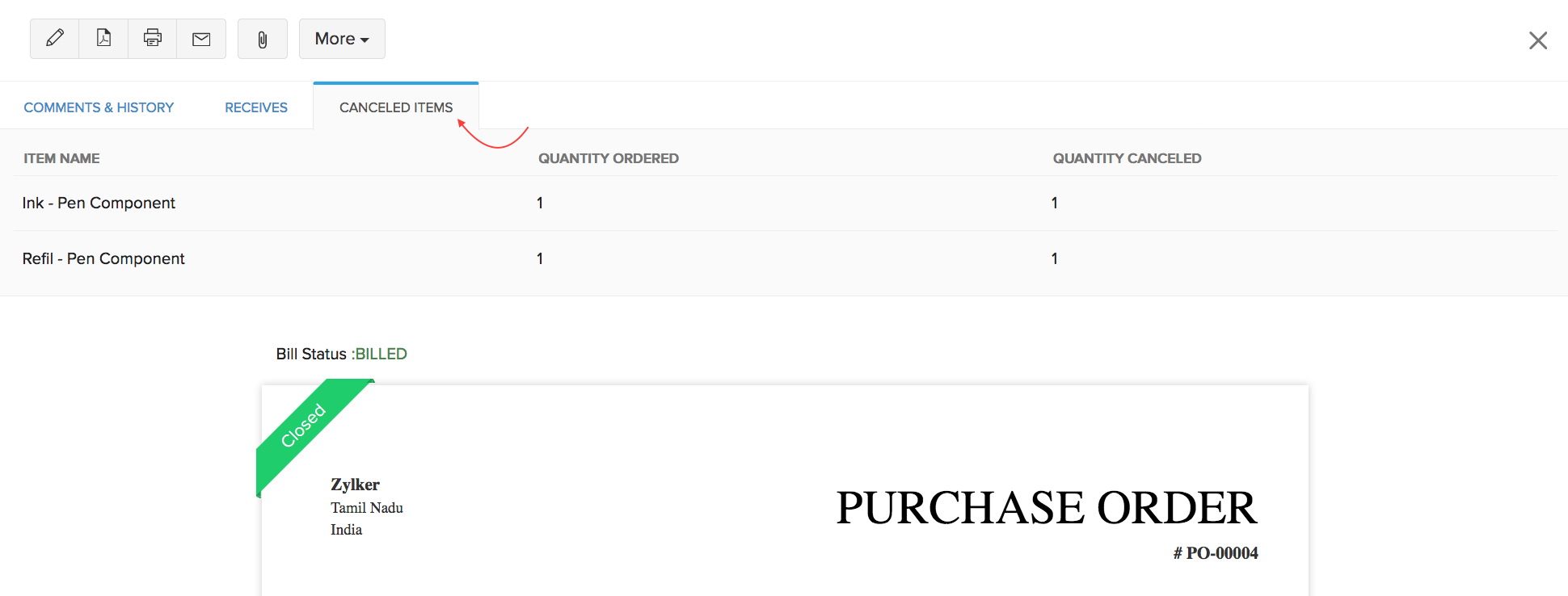
If there aren’t any bills associated with the purchase order yet, then you can choose to mark it as canceled. You can do this by clicking the More dropdown and selecting Mark as Canceled.
Importing Purchase Orders
To Import purchase orders into Zoho Books:
- Go to the Purchases module on the left sidebar.
- Select Purchase Orders.
- Click the hamburger icon in the top right corner of the page.
- Select Import Purchase Orders.
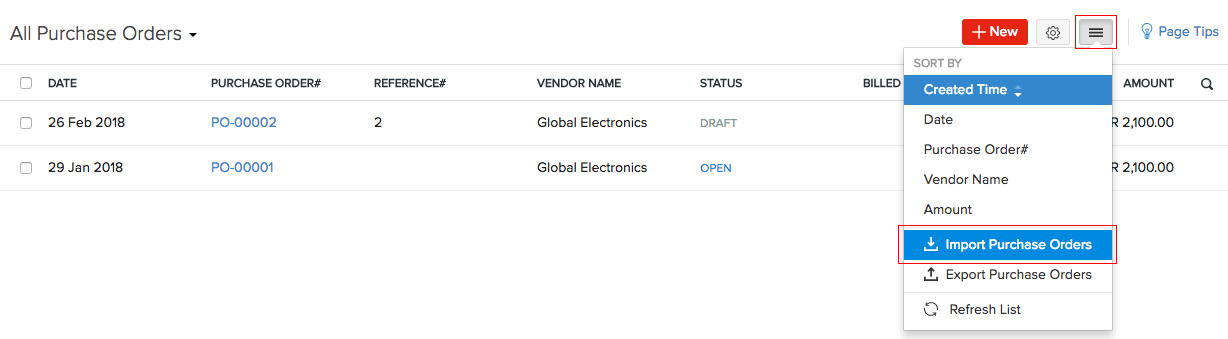
- Choose the file to import from you computer and click Next.
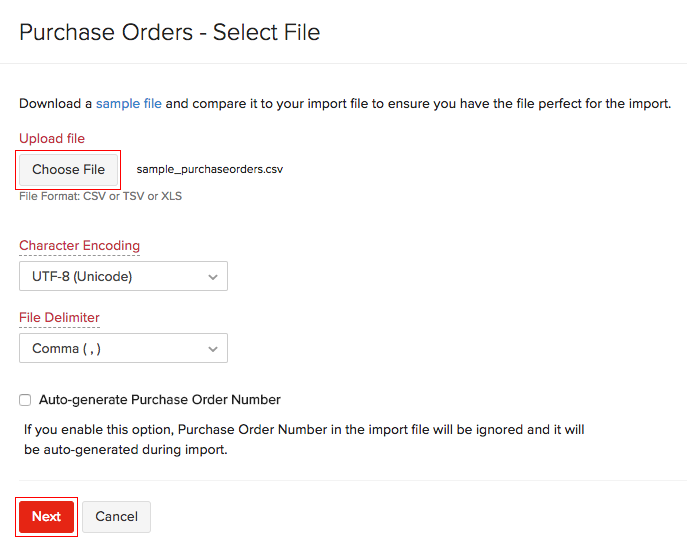
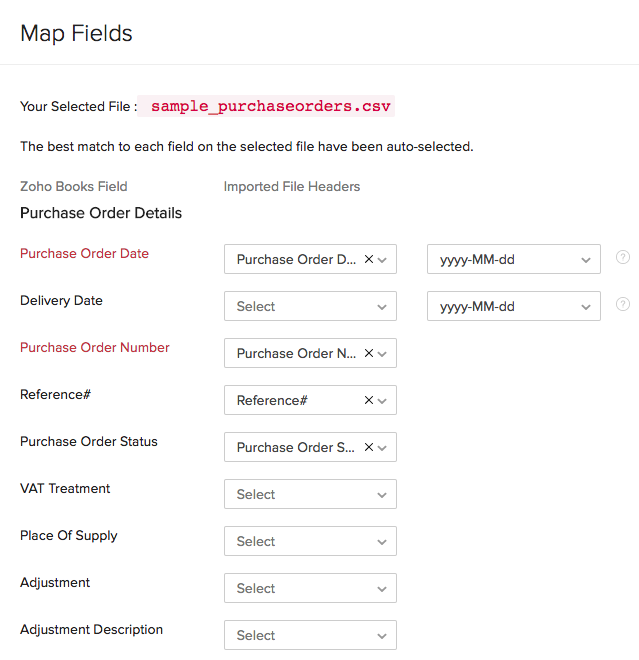
- Ensure that the fields are properly mapped in the Map Fields page.
- Click Next at the bottom of the screen.
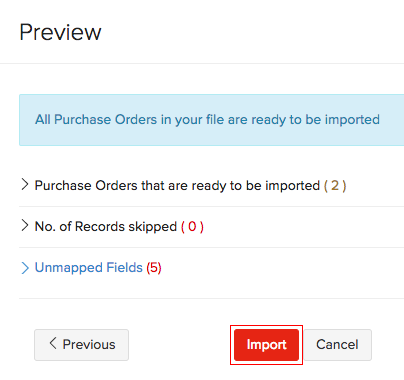
- Click Import.
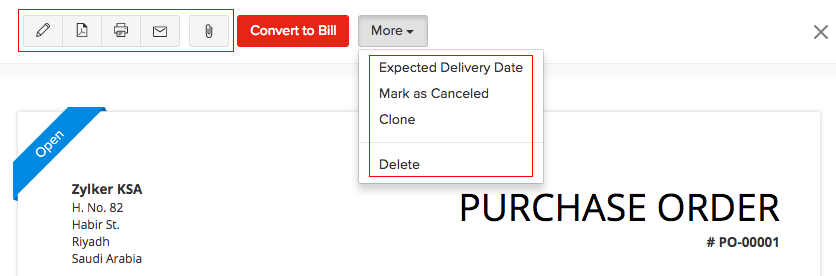
Other Actions
| Fields | Description |
|---|---|
| Edit | Change details in an existing purchase order. |
| Download the purchase order in PDF format. | |
| Print the purchase order. | |
| Email the purchase order to your vendor | |
| Attach | Attach up to 5 files, each of 5 MB to your purchase order. |
| Clone | You can create another purchase order with the same details by cloning an existing one. |
| Delete | Delete your purchase order. |
See Also:
Back to Purchase Order Overview
 Yes
No
Yes
No
 Thank you for your feedback!