
Create & Send Purchase Orders
- Status of a Purchase Orders
- Enabling Purchase Orders
- Creating a Purchase Order
- Creating Purchase Order from Contacts
Status of a Purchase Order
| Status | Description |
|---|---|
| Draft | Purchase orders when created will be in the Draft status. |
| Open | Purchase orders once sent to the vendor will be in the Open status. |
| Closed | Purchase order once accepted by a vendor can be converted to a bill and the status will be Closed. |
| Cancelled | If the vendor rejects your purchase order, the order can be cancelled and the status will be Cancelled. |
The bills created for the respective purchase orders will have any of the following statuses:
| Status | Description |
|---|---|
| Partially Billed | When the purchase order is billed only for some items, then the status will be Partially Billed. |
| Billed | Once the purchase order is converted to a bill, the status will be Billed. |
Enabling Purchase Orders
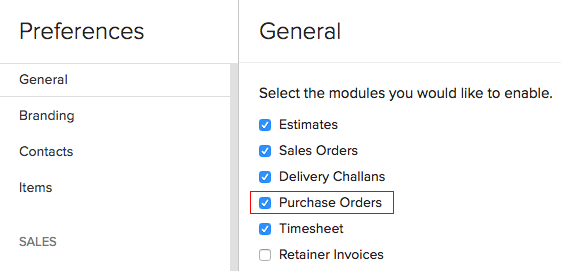
To enable purchase orders:
- Click the Gear icon in the top right corner of the page.
- Select Preferences.
- Check the box Purchase Orders under Select the modules you would like to enable.
- Click Save at the bottom of the page.
Creating a New Purchase Order
To create a new purchase order:
- Go to the Purchases module on the left sidebar.
- Select Purchase Orders.
- Click the + New button in the top right corner of the page.
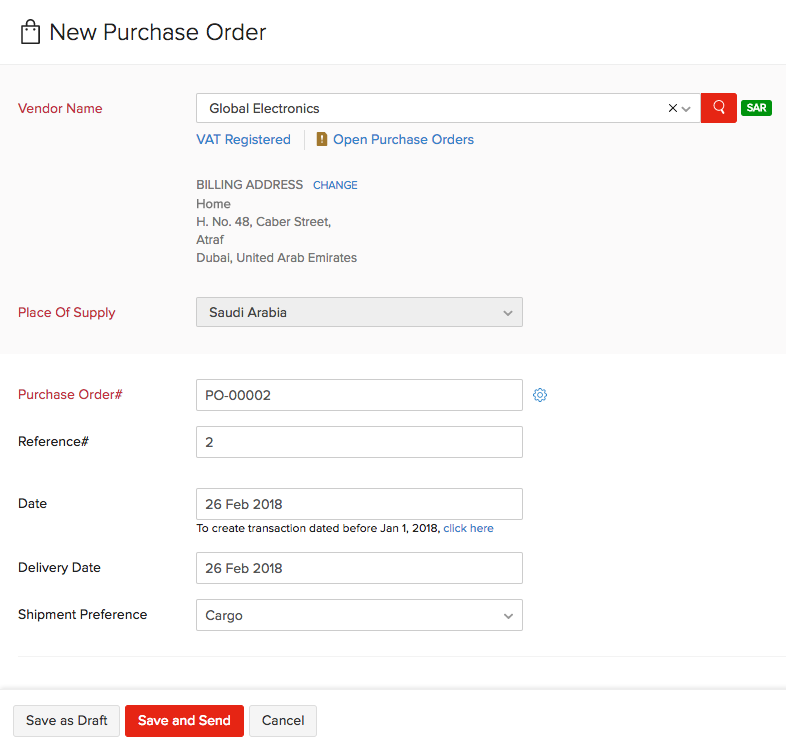
- Fill in the New Purchase Order page.
- Click Save as Draft or Save and Send.
| Fields | Description |
|---|---|
| Vendor Name | The vendor for whom you are raising the purchase order. |
| Purchase Order# | You can either auto-generate a number or manually enter it by clicking the Gear icon. |
| Reference# | Enter a reference number for your reference. |
| Date | The date on which you raise the purchase order. |
| Delivery Date | The date on which the shipment is to be delivered. |
| Shipment Preference | The transportation mode of the shipment. |
| Item Details | Select the items in the purchase order. |
Note:
Templates can be customized by navigating to Setting >Templates and choosing from the purchase order templates.
Creating a Purchase Order from Contacts
You can create purchase order for a customer directly from the Contacts module. Here’s how:
- Go to the Contacts module on the left sidebar.
- Select the vendor for whom you wish to create a purchase order.
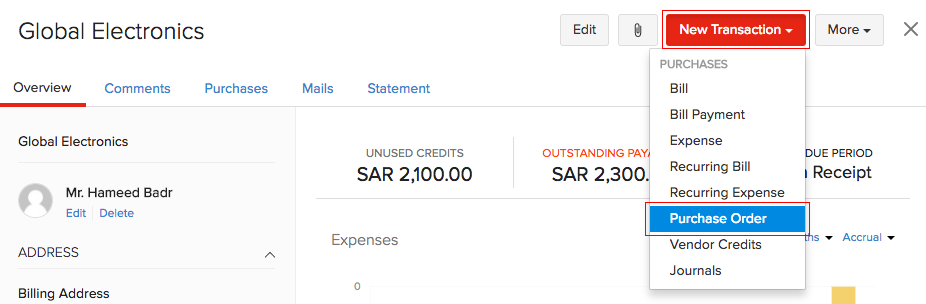
- Click the New Transaction button in the top right corner of the page.
- Select Purchase Order.
- Fill in the New Purchase Order page and click Save.
See Also:
Converting Purchase Order to a Bill
Back to Purchase Order Overview
 Yes
No
Yes
No
 Thank you for your feedback!